
How To - Survox SCAN Utility
Overview
SCAN is a built-in Survox utility used to generate frequency tables from survey data, directly from the command line via PuTTY. Think of it as Survox's equivalent of an Excel pivot table -- it counts how many respondents gave each answer to a question, and can break those counts down across groups (called banners), such as party affiliation by gender.
SCAN reads data files or fone files and produces frequency tables showing the count (and optionally, percentage) of responses for each answer in a question. Results can be presented overall, or broken out by a banner variable for cross-tabulation. Additional options allow for weighting, statistics, and customized formatting.
SCAN is run from the PuTTY command line:
scan <enter>Step-by-Step Instructions
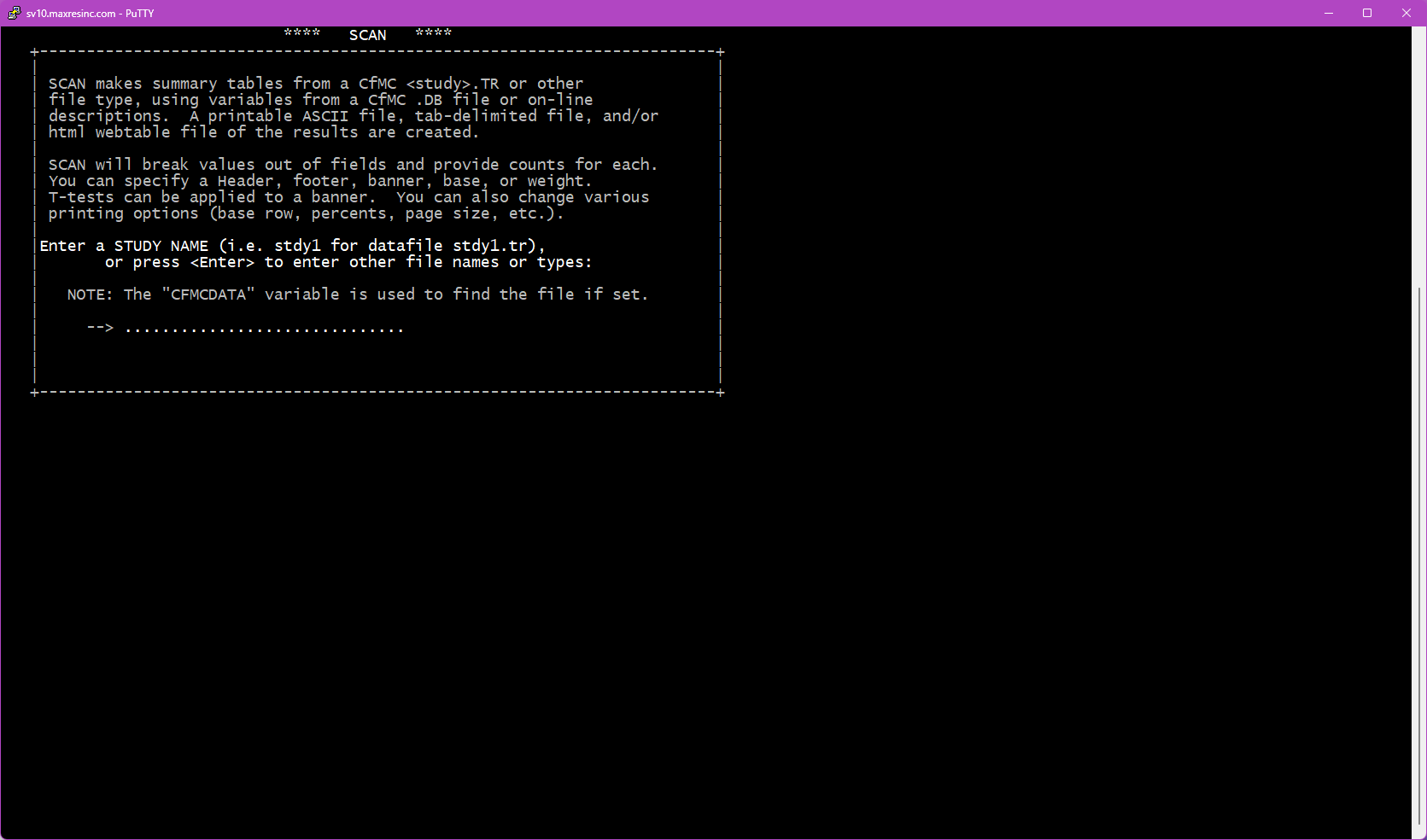
Step 1 -- Specify the Data File
The first screen asks for a datafile name. By default, SCAN looks in the $CFMC/data folder for whatever filename you enter here.
- If you want the main data file for the project (located in
$CFMC/data), type the jobname / datafile name and press Enter. - If you want any other file (a subset file, coded file, fone file, etc.) -- or if you are already in a different directory -- leave this screen blank and press Enter. This will take you to Steps 1B and 1C.
Step 1B -- Specify an Alternate File (if Step 1 was left blank)
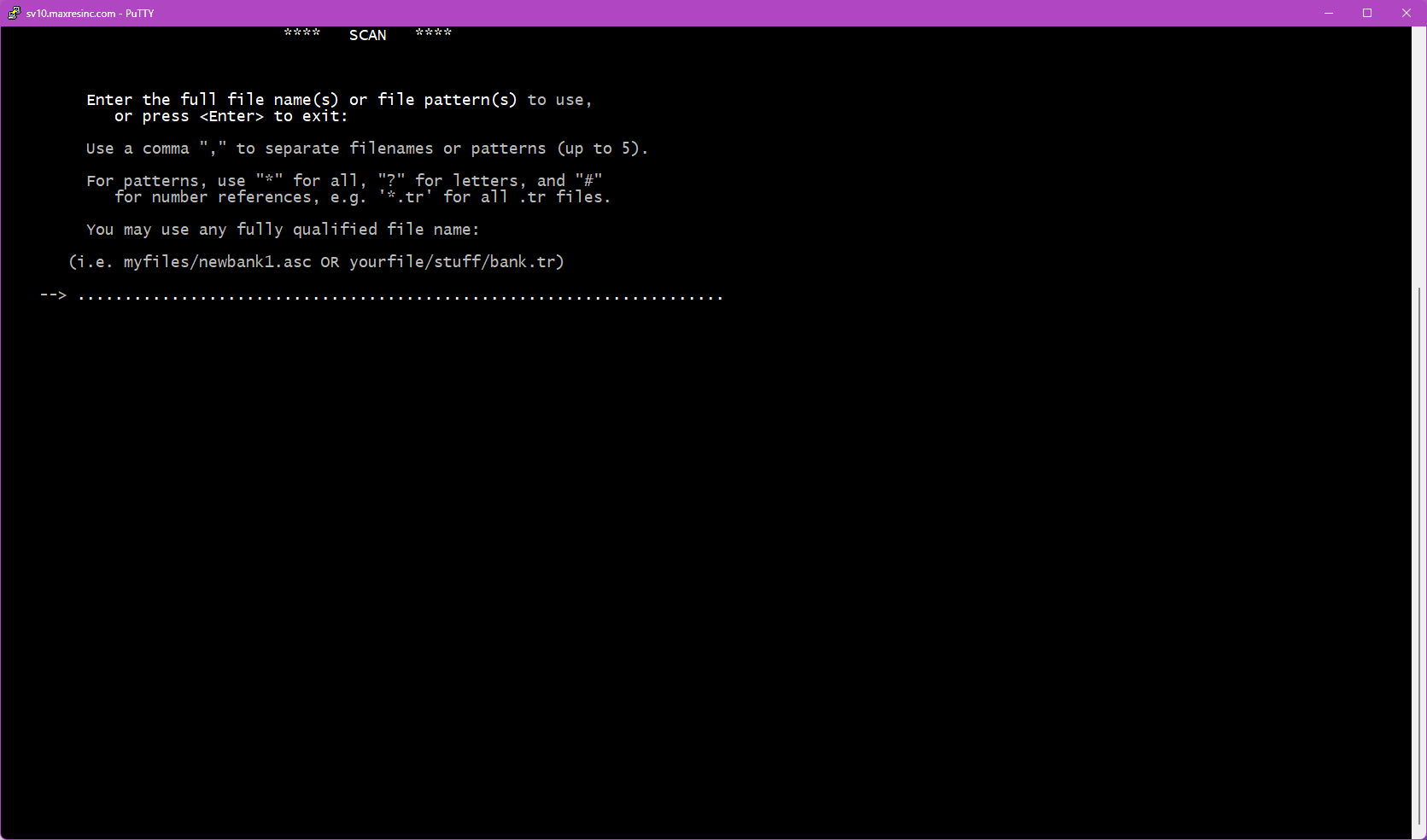
If you left Step 1 blank, this screen asks you to provide the full filename of the file you want to scan. Unlike Step 1, you must include the file extension here.
jobname1.tr
jobname1.fon
jobname1_subset.tr
Important: If the file is not located in the directory you are currently in, you must either provide the full path to the file, or press Enter again at the next prompt to quit out, navigate to the correct directory, and relaunch SCAN.
Step 1C -- Specify the File Type (if Step 1 was left blank)
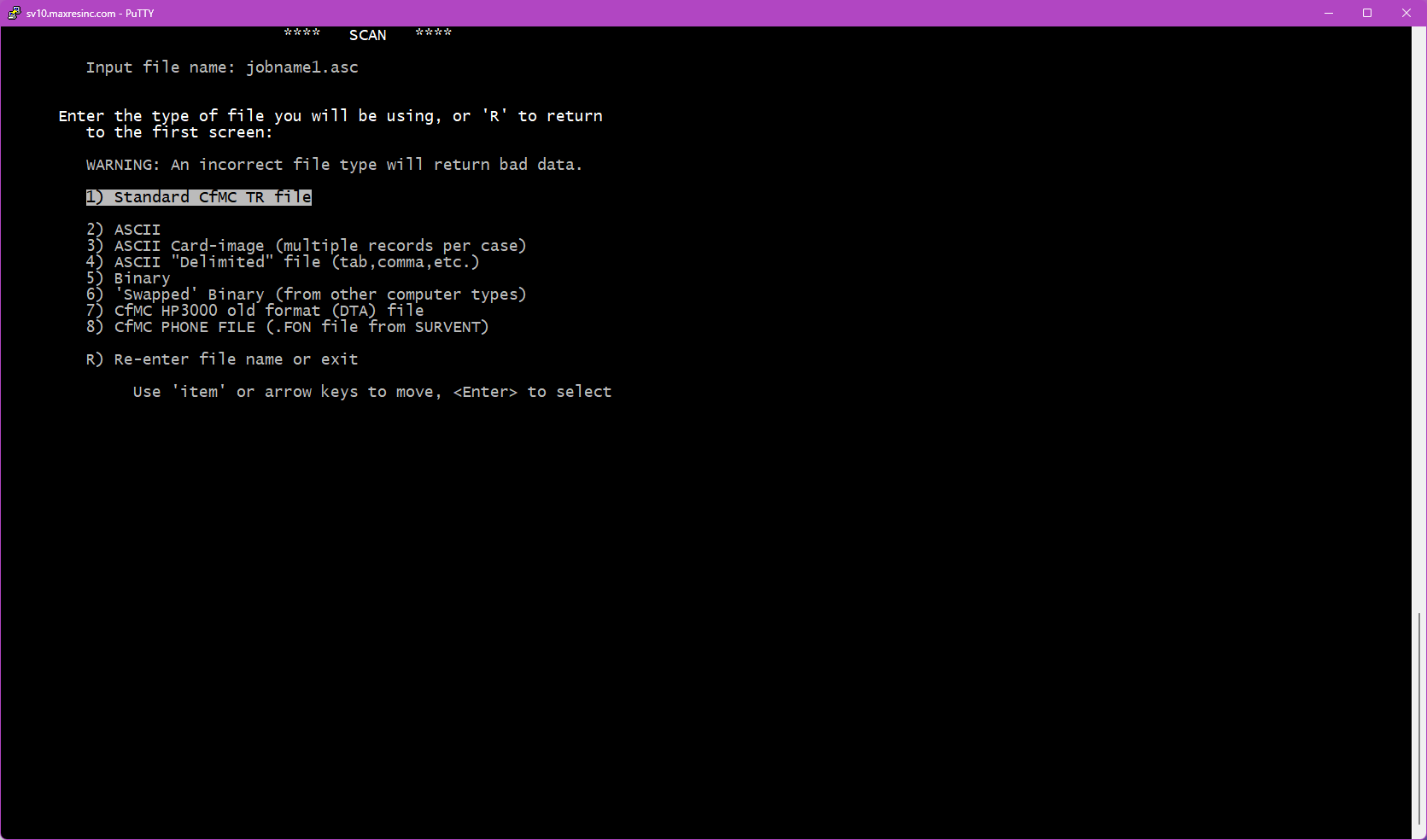
If the file you specified in Step 1B is not a .tr datafile, this screen will appear and ask you to identify the file type so the software knows how to load it. The two most commonly used options are:
- Option 2 -- ASCII file (use for subset files, coded files, etc.)
- Option 8 -- Fone file (use for
.fonsample files)
Note: This screen does not appear if the file entered in Step 1B is a .tr file.
Step 2 -- Use a DB File?
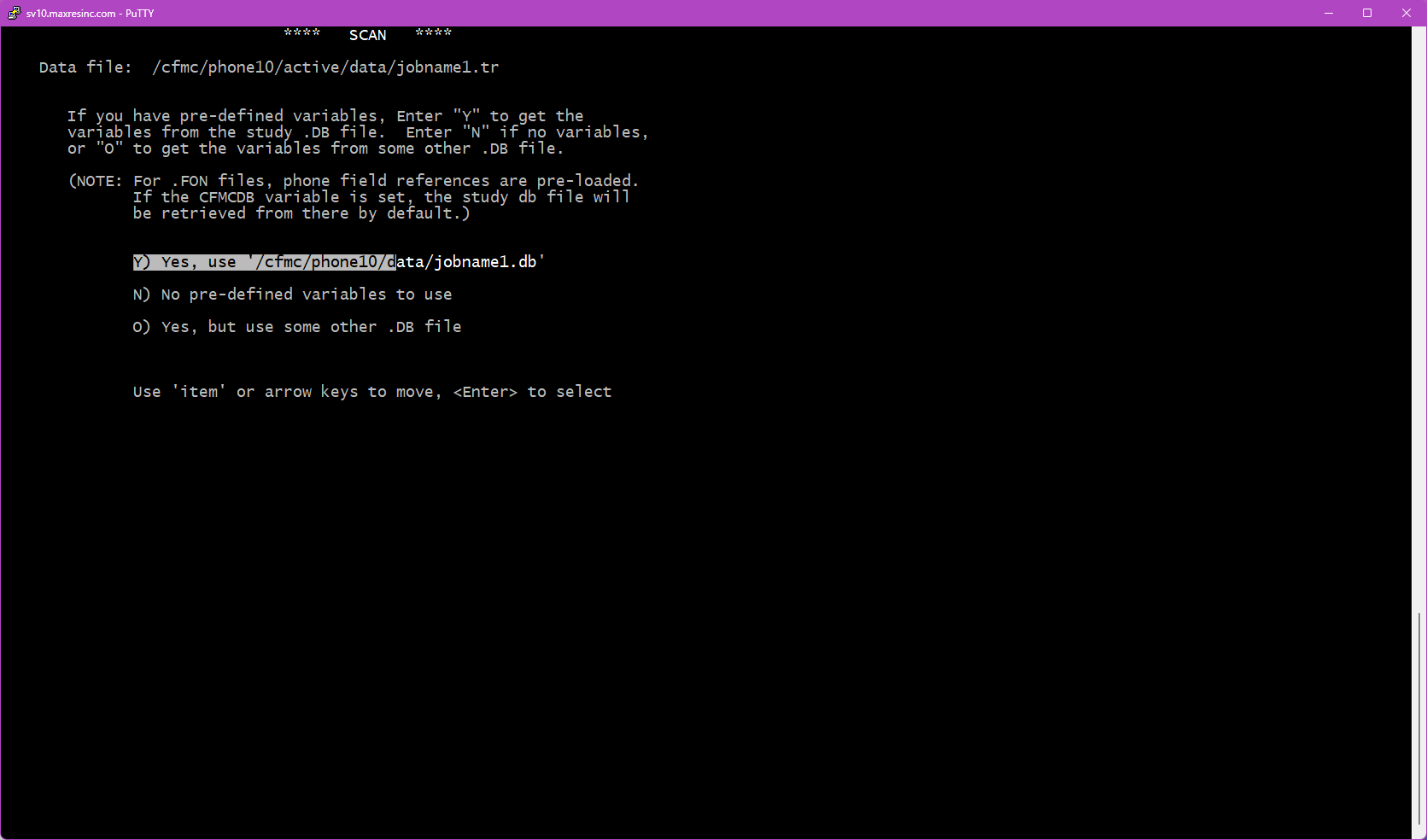
This screen asks whether you want to use a .db file. A .db file contains the variable definitions for the study -- without it, you cannot reference variables by name (like statcode, date, intv, q1, etc.) and would need to know the exact data locations instead.
Important: If you are scanning an ASCII or fone file, answer N and press Enter. These file types cannot easily use a .db file.
If you specified a study name at Step 1, you will see three options:
- Y) Yes, use the
.dbfile found at the default location for this study. - N) No -- do not use a
.dbfile (variable names will not be available). - O) Yes, but load the
.dbfile from a different location.
If you loaded a file from Step 1B instead, the Y) option will not appear -- only N) and O) will be shown.
Step 2B -- Specify the DB File Location (if O was selected)
Enter the full path to the .db file you want to use. Do not include the .db extension -- the utility appends it automatically.
/cfmc/studies/phone/jobname1/jobname1

Step 3 -- SCAN Options
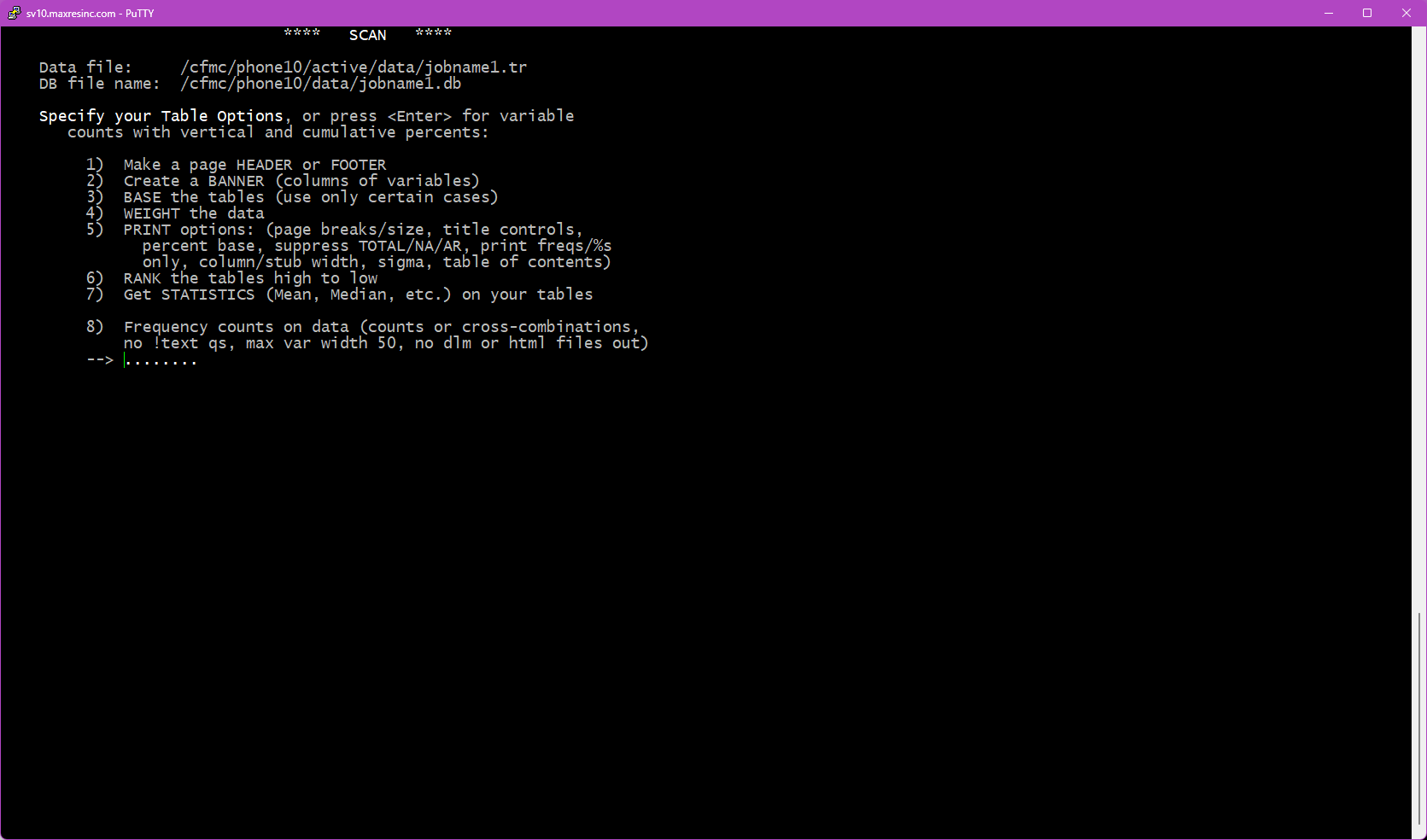
This is the main options screen -- the "guts" of the setup. From here you can configure how your tables will look and what additional data will be included. Each option you select will bring up its own sub-screen. You can select as many or as few options as needed.
Note: Selecting the FREQ option (3h) cannot be combined with most other options -- the one exception is the Base option (3c), which can be used together with FREQ.
3a -- Add Header / Footer
Allows you to add a custom text header and/or footer to the output. Useful for labeling the output with the study name, date, or run description.
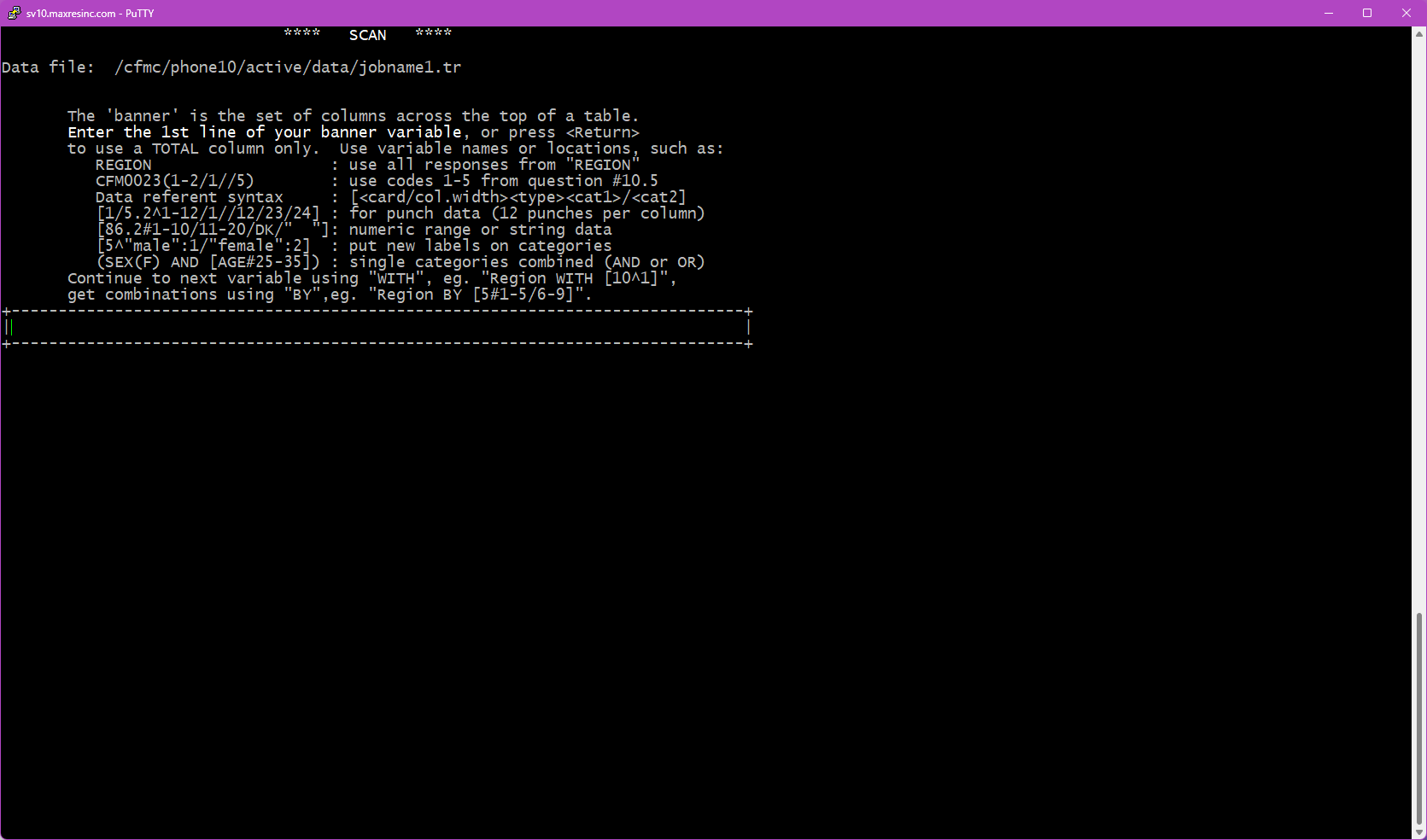
3b -- Create a Banner
After providing a banner, you will be presented with 2 extra screens asking you to adjust/set the column width and "stub" width. The stub is the lefthand side that shows the codes/text. most times, you can just leave the defaults in there and the system will adjust as needed.
3c -- Base the Tables
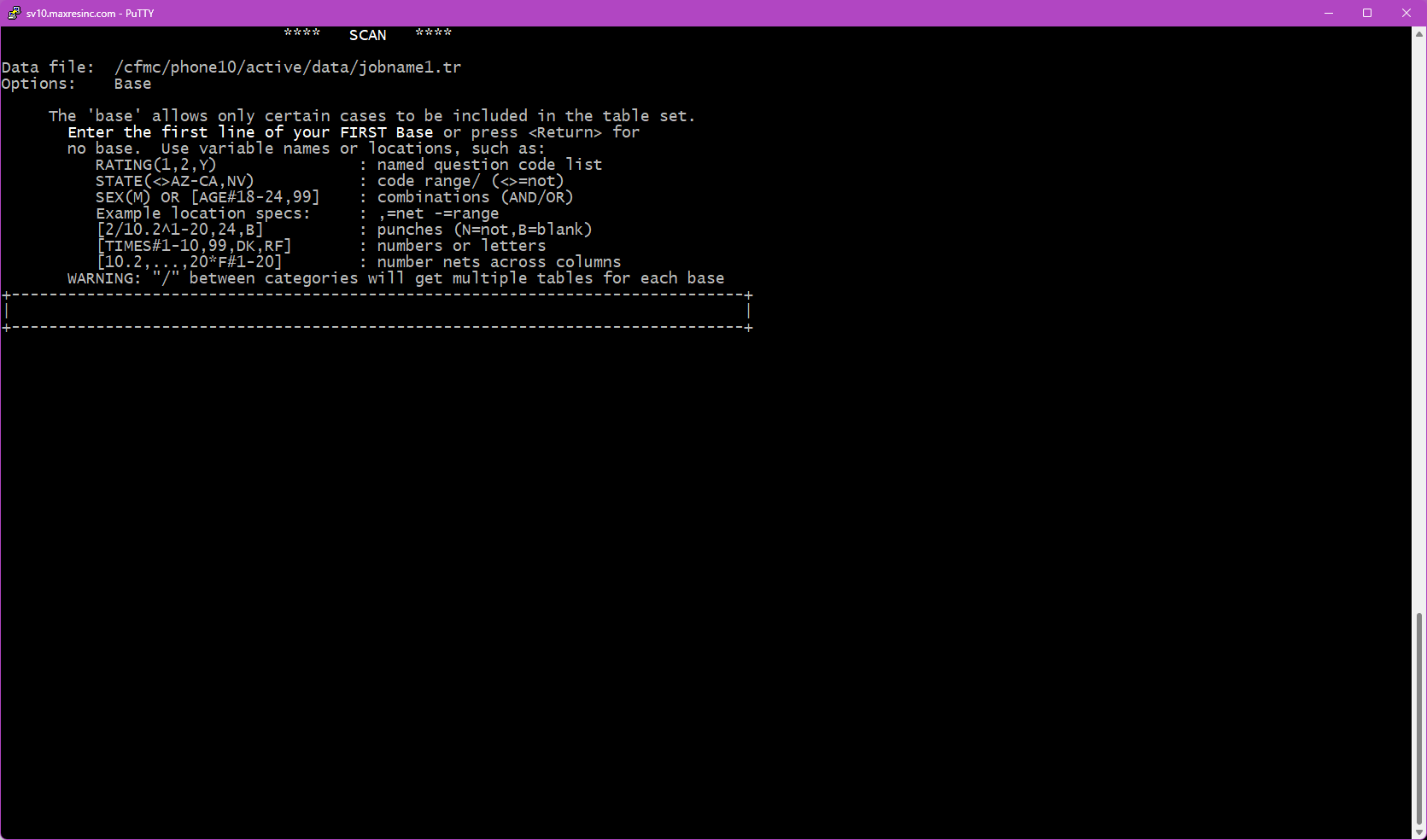
Sets a base (filter) to limit which records are included in the counts. Works the same as the base option in LIST. For example, you could base on completes only, or on a specific region or quota group.
3d -- Weight the Data
Applies a statistical weight to the data, which adjusts counts to reflect a target distribution rather than what was actually collected. For example, if your sample skewed male, weighting can bring the gender balance in line with the general population.
Note: Weighting in SCAN is rarely needed for day-to-day use -- it is primarily applied during final data deliverables using dedicated tabulation tools. However, if a weight value exists in the study data, SCAN's weight option can be used as a quick spot-check. Full weighting procedures will be covered in a dedicated KB article.
3e -- Print Options
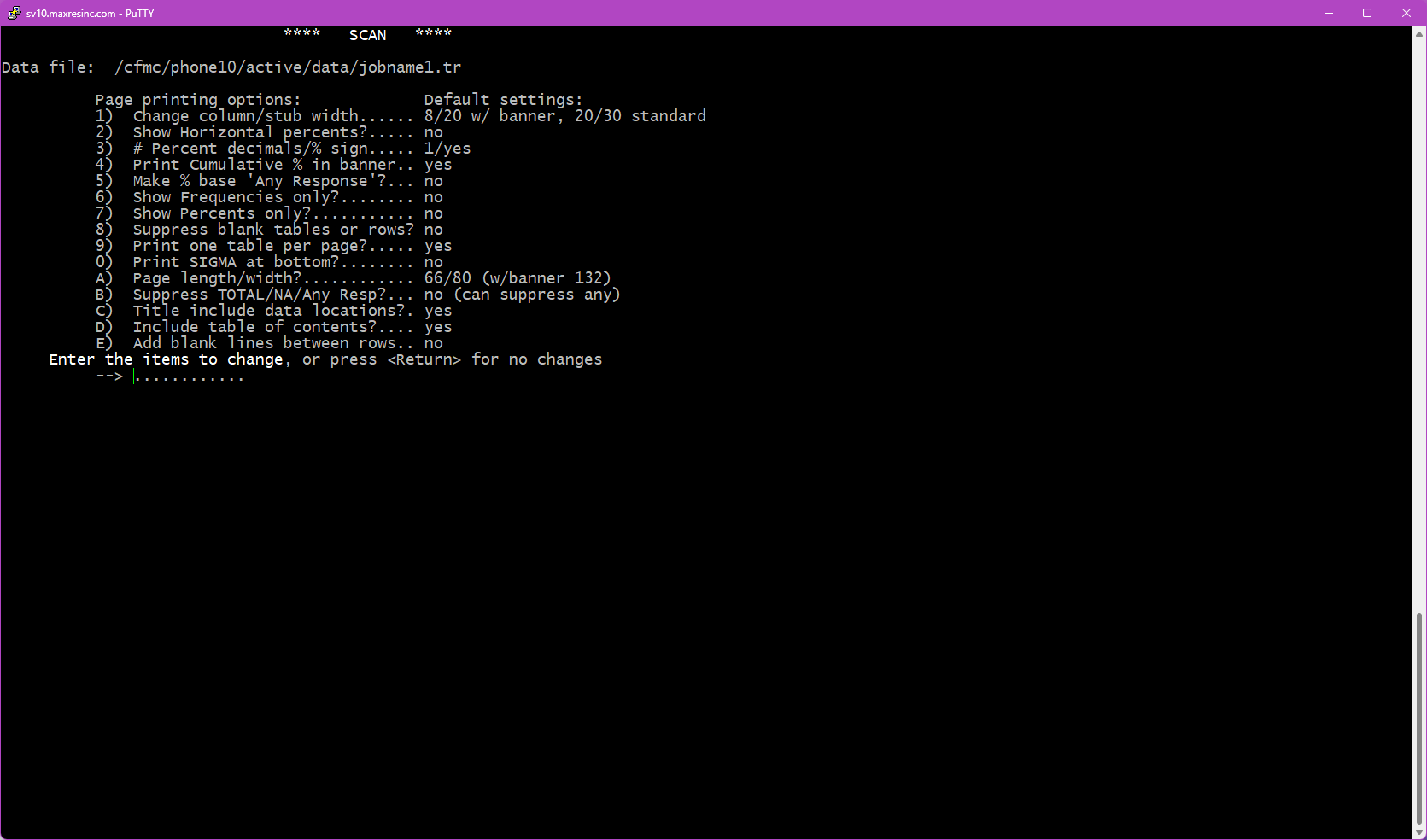
Sets formatting preferences for the output, including:
- Page, column, and row size
- Show / hide table of contents
- Show / hide percentages and / or frequencies (raw counts)
- Show / hide summary rows: TOTAL, No Answer, and Any Response
*Options listed should all be elected at once. Anything listed as Yes/No, putting in that code will flip it to the opposite. Items like #1, 3, & A will all prompt for values on their own screen.
*After making your selections, the screen will refresh showing the new values. Press <ENTER> to commit, or "R" to go back to the default settings.
3f -- Rank Tables
When selected, answers within each table will be sorted from highest mention to lowest, rather than appearing in the order they were coded in the survey. Useful for quickly identifying top responses on list-style questions. *You CANNOT combine RANK with STATS
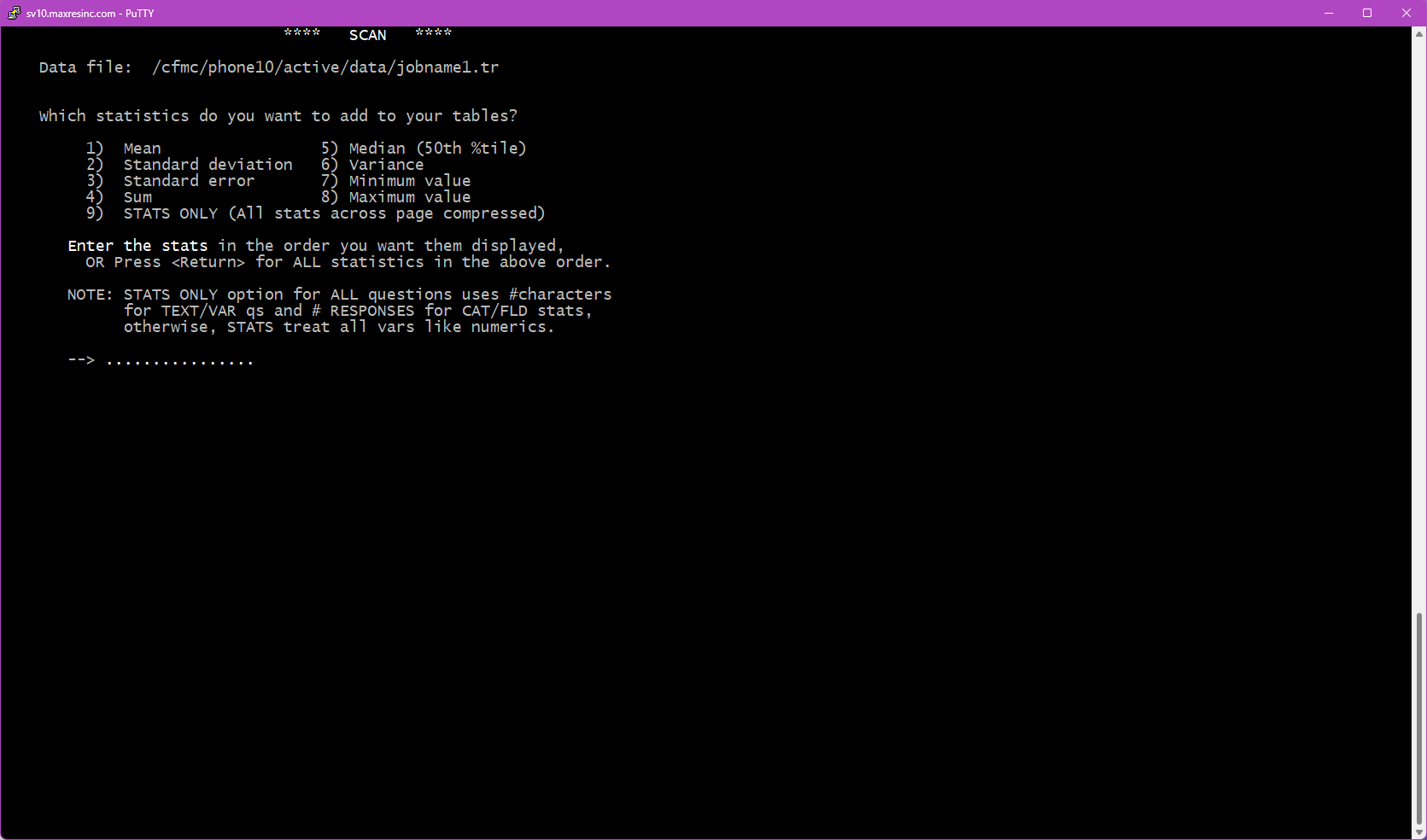
3g -- Get Stats
Adds statistical calculations to the output. Stats are most useful on numeric questions (age, percentages, etc.) and scaled list questions (e.g., a 1-5 rating scale), where a mean or median has practical meaning.
Stats can be applied to any list question, but the results may be meaningless depending on how the answers are coded. For example, a mean of 1.5 on a gender question (1=Male, 2=Female) only tells you the responses landed halfway between the two codes -- it does not describe the data in any useful way. Use your judgment about whether stats make sense for the question type being scanned. *You CANNOT combine RANK with STATS
Important: When stats are enabled, they are applied to all questions being processed in that run -- you cannot selectively enable stats for individual questions. If you need stats on only certain variables, run those as a separate SCAN using Option 2 (Specific Variables) in Step 5.
Available stats include:
- Mean -- The average value across all responses.
- Median -- The middle value when all responses are sorted in order. Less affected by extreme outliers than the mean.
- Standard Deviation -- How spread out the responses are from the mean. A low number means most answers were close together; a high number means they were spread wide.
- Standard Error -- An estimate of how much the mean might vary if the survey were run again with a different sample. Smaller is more reliable.
- Min / Max -- The lowest and highest values recorded.
- Sum -- The total of all values added together.
- Variance -- Similar to standard deviation, but expressed as a squared value. Used in more advanced statistical analysis; standard deviation is more human-readable for everyday use.
3h -- FREQ Tables
A streamlined, no-frills frequency table output. Limited options and no formatting controls. Cannot be combined with other Step 3 options, with the exception of Base (3c). Best used for a quick, raw count when formatting is not needed.
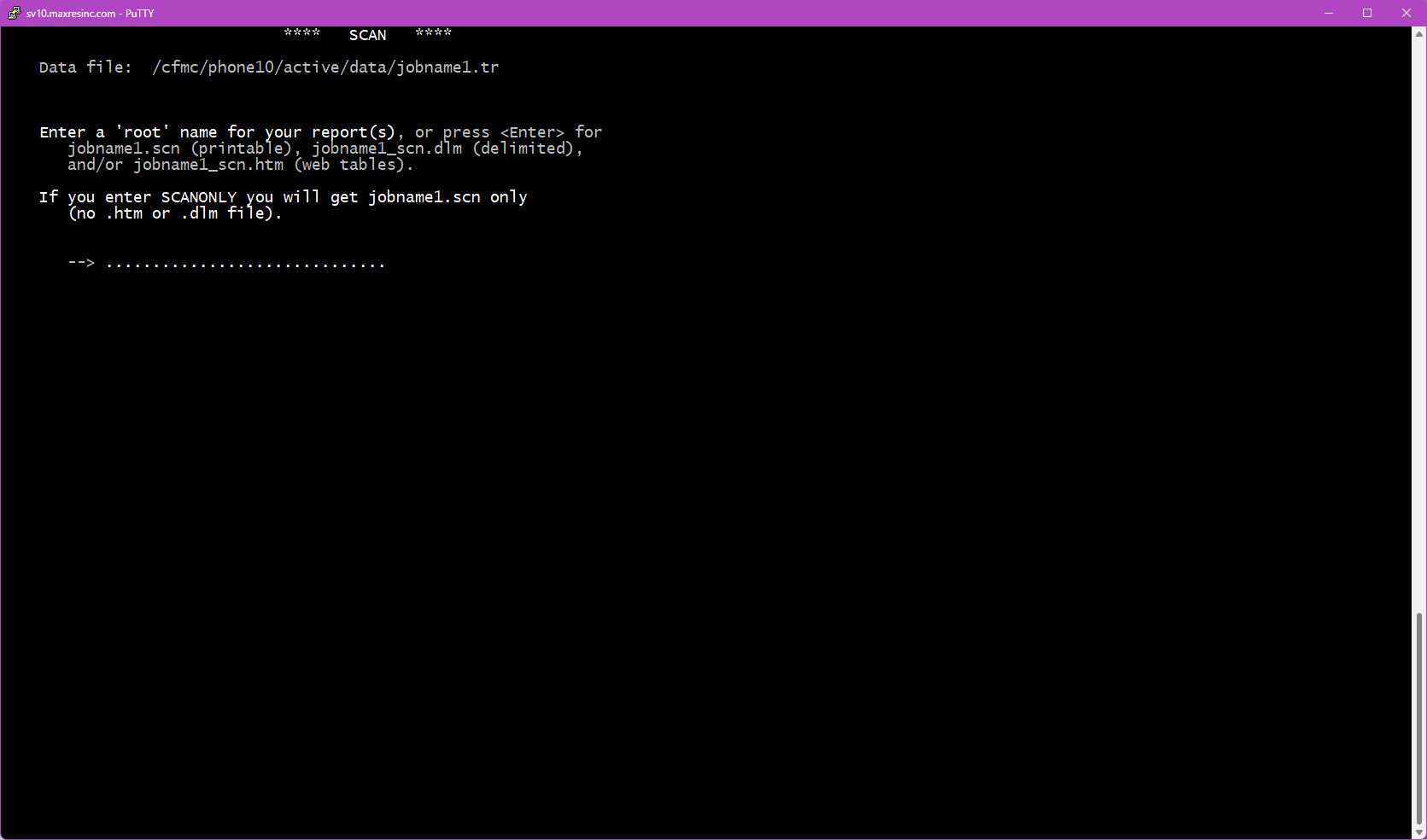
Step 4 -- Name the Output File
You will be prompted to provide a name for the output file. This step comes earlier in SCAN than in LIST -- it appears here, before variable selection.
If you provided a studyname on the FIRST screen, this will default to jobname.scn and you can provide a diferent name if you wish. If you however specified a filename on the second screen, pressing Enter without entering a name will output the tables directly to the screen only. Note that skipping a filename will also trigger an error beep -- this is expected behavior, not a crash.
Output files are typically saved with a .scn extension (e.g., jobname1.scn).
Step 5 -- Select Variables
Choose which questions / variables you want to include in the scan. There are three options on this screen, though Option 3 is not used in practice.
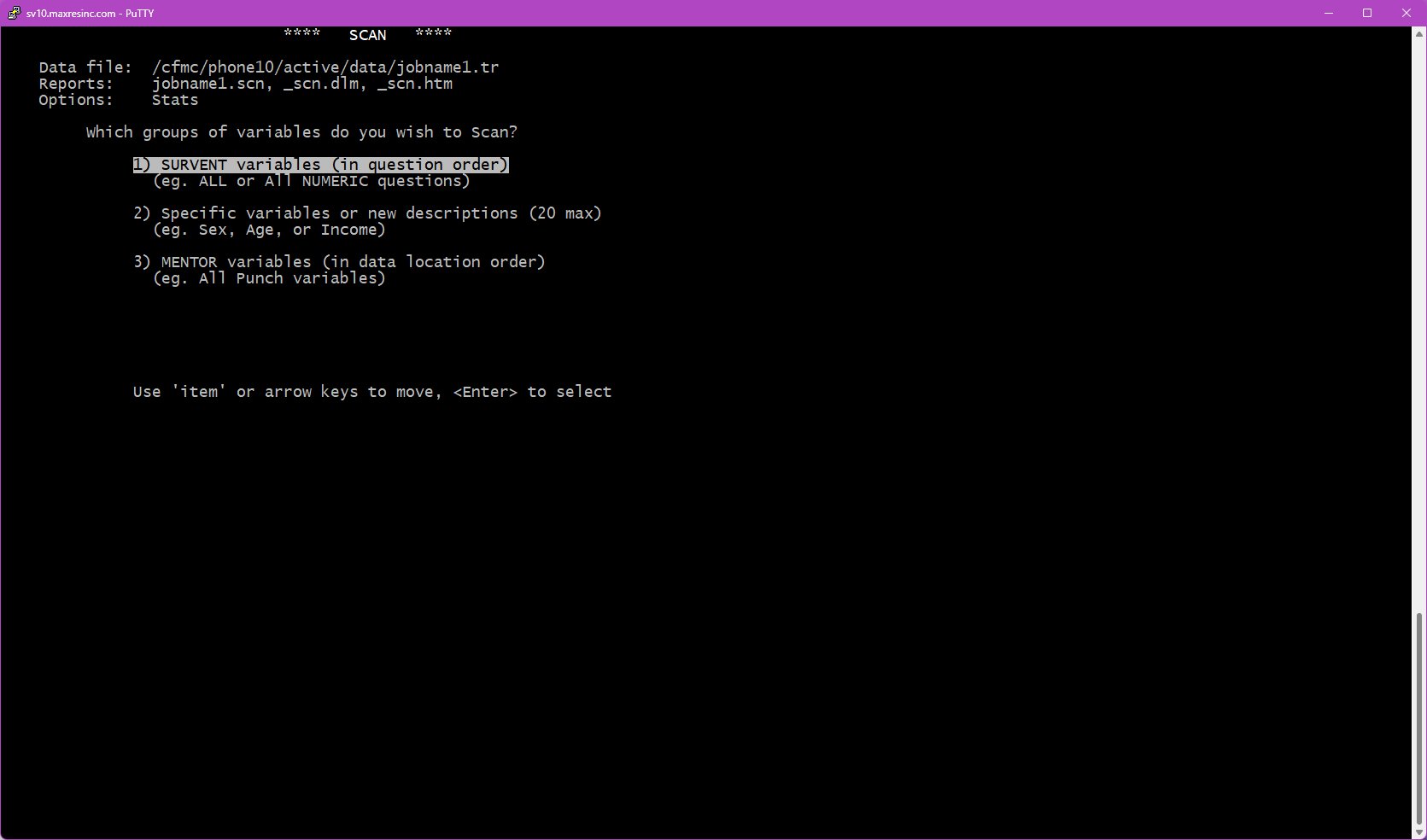
Option 1 -- All or Specific Question Types
Select all variables, or filter by question type. Follow-up screens will appear:
Step 5b -- Select Question Types
Press Enter to include all available question types, or enter codes to filter:
- Option 1 (CAT) -- No longer exists in Survox 10. Selecting this will return no data.
- Option 2 (FIELD) -- Closed-ended questions: yes/no, gender, rating scales, lists, etc.
- Option 3 (NUMERIC) -- Numeric answers: age, date of birth, percentage scales, etc.
- Option 4 (VAR/SHORT TEXT) -- Short text fields: name, address, sample info, system data (date, interviewer, IP address, etc.)
- Option 5 (OPEN END) -- Long-form open-ended text responses.
Note on text-based questions (Options 4 and 5): SCAN will not meaningfully tabulate free-text responses unless the entries are identical. For example, ZIP codes would calculate correctly since they are consistent values, but name fields would not produce useful output since every entry is likely unique. In most cases, running a SCAN on open ends or address fields will only return a count of how many records had something entered.
Step 5c -- Include / Exclude System Variables
Choose whether to include system and unnamed variables. The default is named variables only, which is the correct choice in most cases.
Step 5d -- Stats Handling for Numeric Questions
If your selected question types include numeric questions, stats may be generated automatically -- even if you did not select stats in Step 3. If this is the case, you will be prompted to choose:
- Show all answers only
- Show all answers + stats
- Show stats only
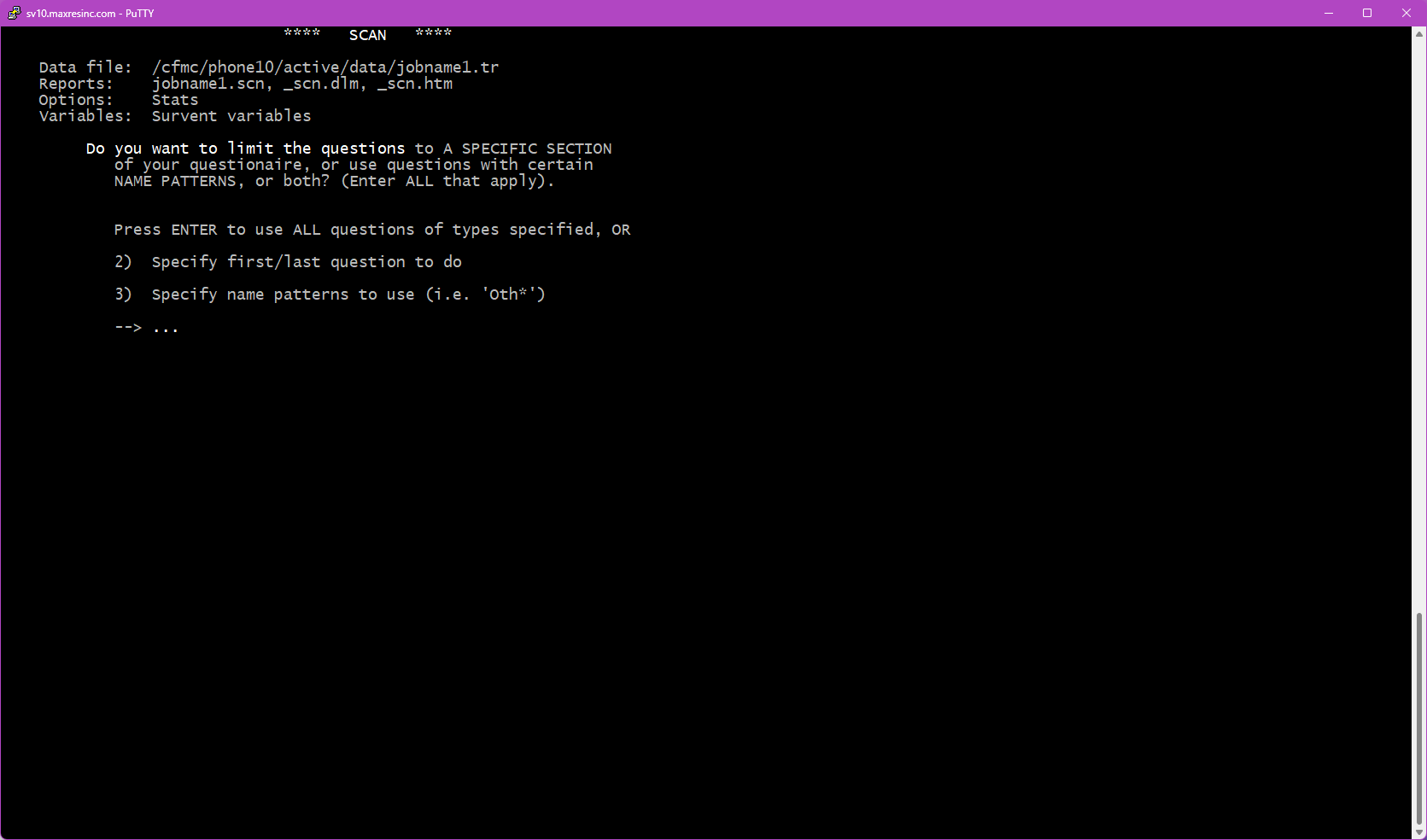
Step 5e -- Subset the Variables
Optionally narrow down which variables are included. Three options:
- Press Enter -- Include all variables of the selected type(s).
- Start / Stop -- Specify a starting and ending question label. You can use the built-in
FirstQandLastQmarkers to include only actual survey questions, excluding sample and system variables. - Pattern Match (wildcard) -- Use the
*wildcard to match variable names. For example,q*to include all survey questions that begin with Q (e.g., Q1, Q15, QD6), ors_*for all sample variables. The*wildcard is required -- partial names without it will not match.
Option 2 -- Specific Variables
Step 5f -- Frequency Counts or Use Variables as Defined in Survey Specs
Two display options:
- Frequency Counts -- Attempts to break down responses by matching identical values. Required when using data locations instead of label names.
- Use Variables as Defined in Survey Specs -- Shows actual answer text (e.g., Yes / No) based on the predefined codes in the survey. This is the preferred option for standard closed-ended questions.
Important: If you are specifying variables using data locations (e.g., column positions rather than label names), you must use Frequency Counts.
Note on text / variable fields: If the variables selected in Step 5b include short text or open end question types, Use Variables as Defined in Survey Specs will only return a total count of answered records -- there are no predefined codes to load and display. Use Frequency Counts if you want SCAN to attempt to match and tally identical text entries.
Step 5g -- Enter Variable Names
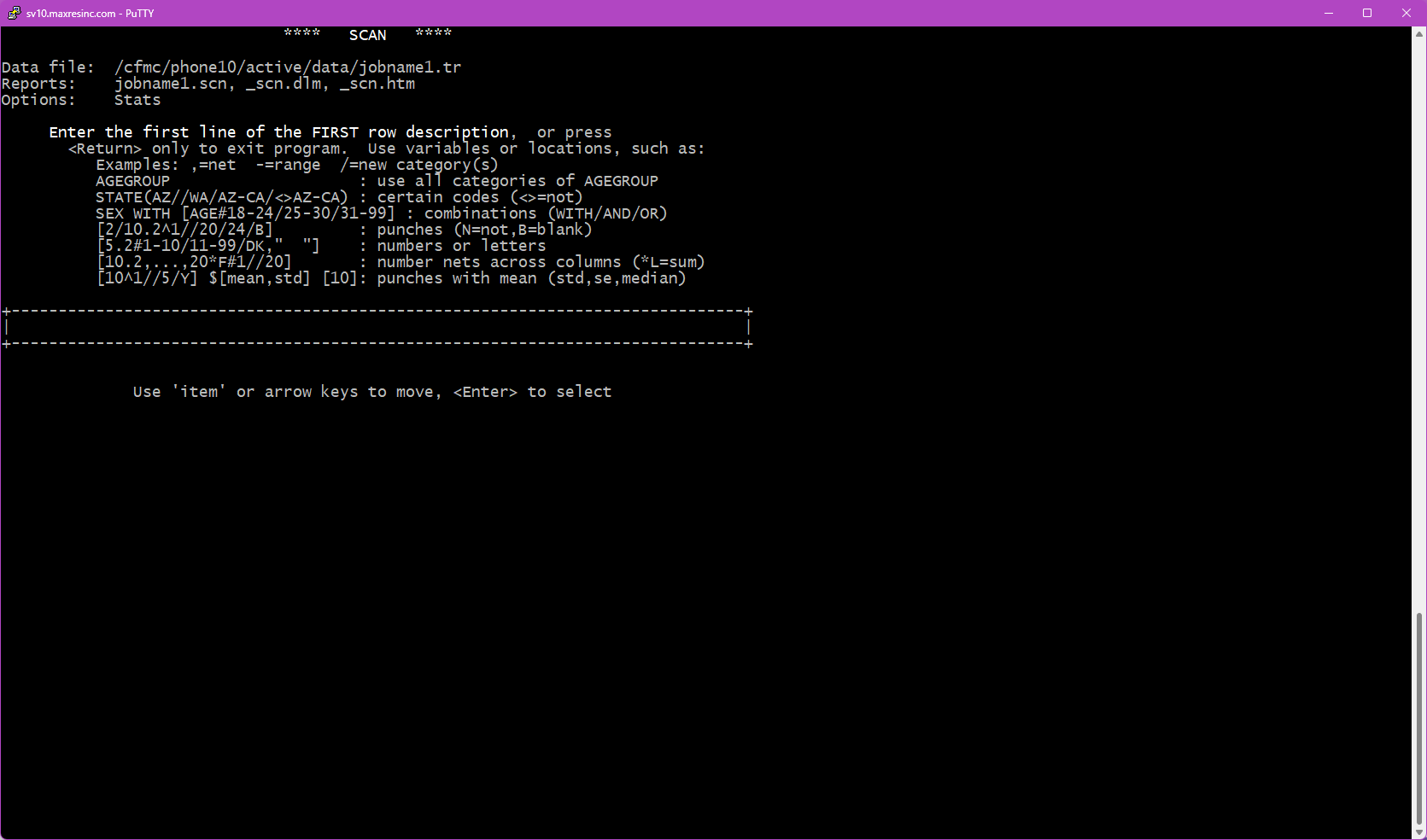
Enter the variables you want to scan, one at a time, up to 10.
Important -- [$] Notation (SCAN only): For question types that are not standard list / closed-ended questions -- including numeric questions, short variable fields, and open ends -- the variable label must be wrapped in [$] notation, or SCAN will return an error. For example:
[age$]
[51.2$]
This applies to sample info fields specified by data location as well (e.g., [51.2$]).
Step 5h -- Per-Variable Base (Optional)
After entering the second variable, you will be prompted to specify a base for that variable, or press Enter to use the same base set in Step 3c, or enter none for no base. Each variable can have its own independent base if needed, though this is less commonly used in SCAN than in LIST.
Step 5i -- Cross Variable (FREQ tables only)
When running FREQ tables, after each variable entry you will be given the option to cross it by another variable. Crossing combines two questions into a single table showing all possible combinations of their answers. For example, crossing gender by race would produce output showing Male-White, Male-Asian, Female-Black, and so on -- for every combination present in the data. This option only appears when FREQ (3h) is the selected output type.
Step 6 -- Confirm and Save Spec
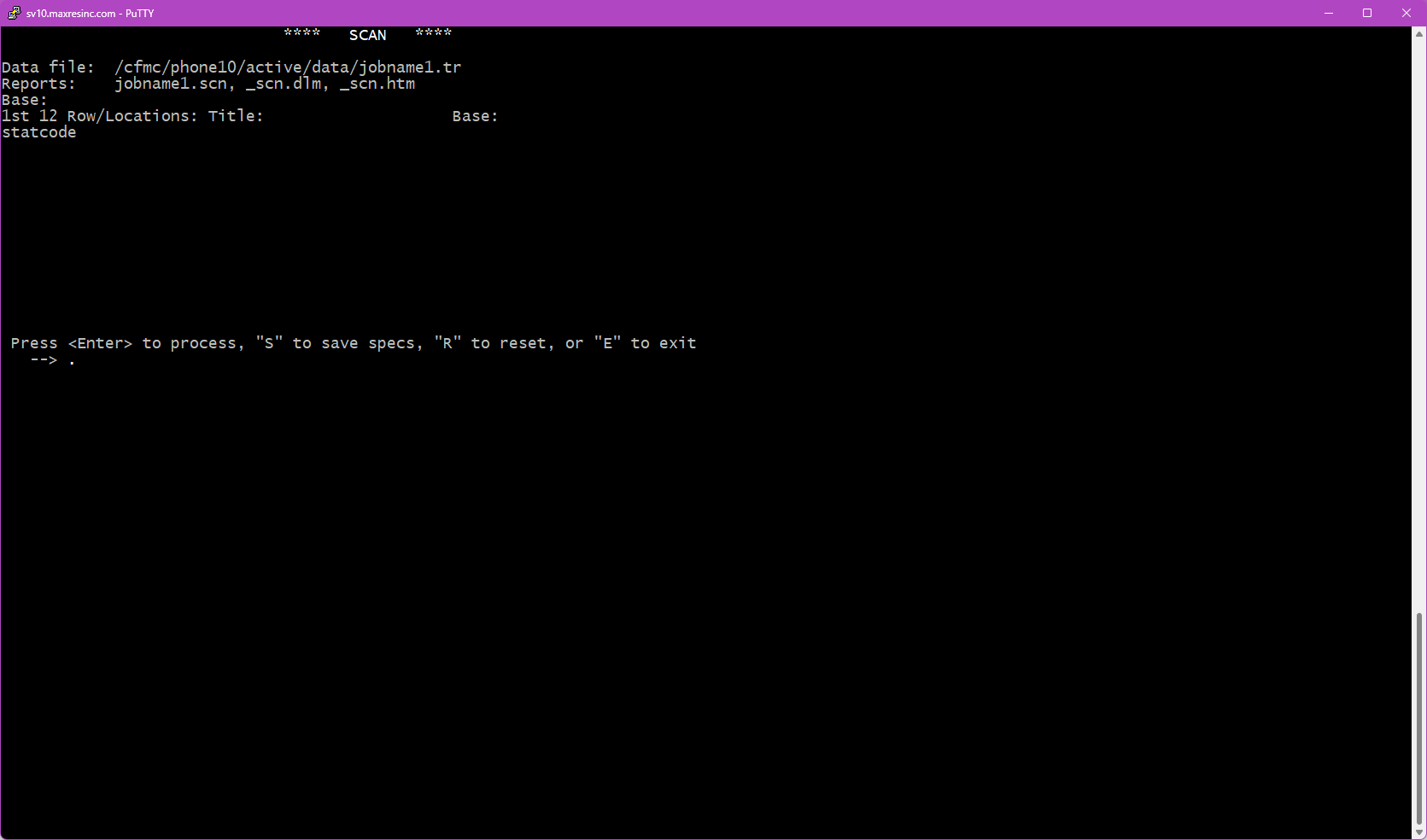
The final screen shows a summary of everything you have configured -- the file being read, the DB file in use, the base, banner, output file name, selected variables, and any options chosen in Step 3. Review this carefully before running.
Press Enter to run the scan as configured.
Saving as a Spec File: Before pressing Enter, you can type a filename with a .spx extension (e.g., jobname1_scan.spx) and press Enter. This saves all current settings as a reusable spec file. To rerun it later from the same directory:
m2 jobname1_scan.spx
This is particularly useful for complex scans with banners, stats, and custom bases that you plan to run regularly or update as data comes in.
Video Demonstrations
The following short demos walk through three common SCAN use cases from start to finish.
Demo 1 -- Simple Scan, Completes Only, No Banner
Shows how to run a basic frequency scan on survey questions with no banner applied -- just overall counts for each variable, output to screen.
[
Demo 2 -- Frequency with Banner
Shows how to set up a banner (e.g., quotavar(01/02/03/04) for sample type) and run a scan that breaks out frequency counts across banner points.
Demo 3 -- Print and Stat Options, Using Frequency Counts, Not Variable Counts
Shows how to configure Step 3 options including print formatting (show/hide percentages, totals) and stats (mean, median, min/max) for a numeric question.
Troubleshooting / Common Issues
Error beep with no output file specified
Expected behavior when pressing Enter through the filename prompt in Step 4. The scan will still run and output to screen. If you need a saved file, rerun and provide a filename.
Variable returns an error or no data
If a variable label is not a standard closed-ended (FIELD) question -- such as a numeric, open end, or short variable field -- it must be wrapped in [$] notation (e.g., [age$]). Entering the label without this wrapper will cause an error. The same applies to data location references (e.g., [51.2$]).
FREQ option warning when combined with other options
FREQ tables cannot be combined with most other Step 3 options -- the one exception is the Base option (3c). If you attempt to select FREQ along with any incompatible option, SCAN will not allow you to proceed -- it will display a message that the options cannot be combined and return you to the options screen automatically.
Numeric question generates stats you did not request
This is normal. Certain numeric question types automatically trigger stats generation in SCAN regardless of whether you selected stats in Step 3. You will be given the option at Step 5d to control how those stats are displayed.
Banner or base logic not working as expected
DB file out of sync with data
If the study questionnaire has been modified since the .db file was last generated, variable definitions will be out of sync with the actual data. Regenerate the .db file for the study and rerun the scan.