
Troubleshooting - INTV Login Issues
INTVS Cannot Login...? Here is what to check:
At times, interviewers may experience various issues when logging in, that prevents the process from completing. The below list covers the "most common" causes but doesn't include everything. If nothing below seems to fix the issue, DP/IT should be involved to further diagnose the problem... The documentation below covers: "White Screens", "Cannot Initialize Dialer", & "Booth Not Authorized" issues.
I. Interviewers See "Booth Not Authorized" Message:
When this "booth not authorized" message appears, it simply means that the booth/ID they are using has not been granted access to the project they are trying to access. This is a simple fix, accomplished via the Survox Console located under Manage -> Monitoring & Stations -> Authorize Station. To fill out the form, first confirm if the booth(s) in question have already been authorized for the study in a different mode "Practice" vs "Live" & "Dialer" vs "No Dialer". If the booth(s) are not shown in the list, the steps to authorize them are straight forward, using the prompts at the top of the Console screen:
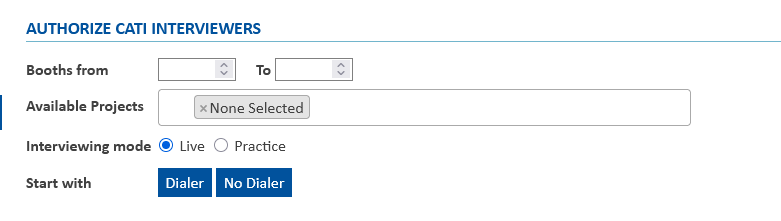
- In the "Booths from" section, add the starting and stopping range of booths/IDs. For ALL BOOTHS, use 1001 - 1650. For a specific booth, put that same number in both boxes. Note: booth 1001-1650 are INTV IDs, 1700-1750 are for clients and/or non-dialer access/testing.
- Under "Available Projects" box, click in the white area to see a list of know projects. Either scroll down to the project or start typing the study code and it will appear. Be sure to actually "click" the study you want, so it shows up in the "Available Projects" box.
- Select Live for "Interviewer Mode"
- 9 times out of 10 the "Start With" will be dialer. As soon as you click Dialer/No Dialer, the booth(s) will be added to the list below of Authorized Studies.
- The Agent(s)/Booth(s) should now be able to login
NOTE: For Client Testing/Data Entry/Suspend Entering, use booths "1701-1750", "Live" and "No Dialer" options. Because of our "wctran" way of testing, booths do NOT need to be authorized for testing mode.
II. Interviewers receive "Dialer Can't Initialize Study XYZ" Message:
If interviewers login and receive this message, it typically means there is something wrong with the study's "Dialer Configuration" page, most commonly something wrong in the callerID File (extra blank lines, non-phone number text, changing CID from list to specific numbers, or "DOS" formatted files.) Most times, this requires DP/IT to resolve, however there a few things that can be checked before engaging them...
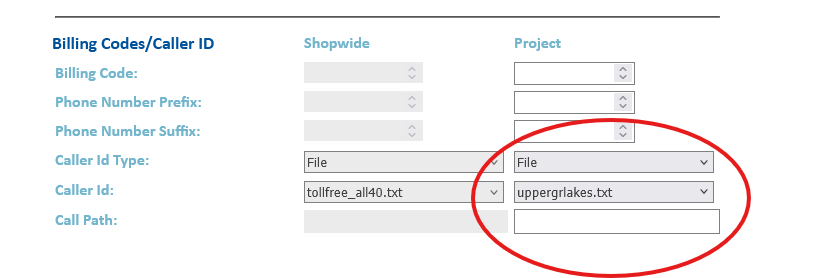
- The first step in diagnosing the issue is to isolate what mode the dialer is using, by checking the Study's Dialer Config Page.
- Navigate to the dialer config page in the console, Manage -> Study Control -> Dialer Configuration and then selecting the study from the dropdown
- Take note of the CallerID information at the bottom of the screen
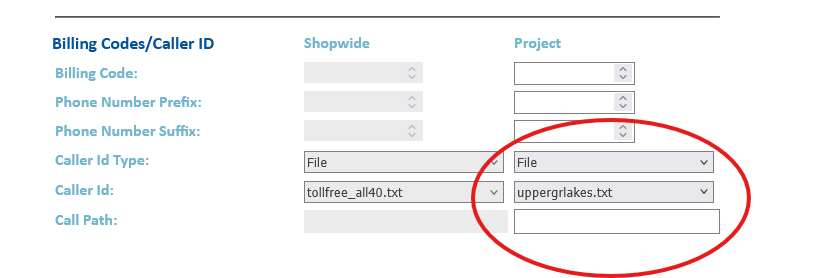
- It should be shown as either:
- File & a specific filename
- --- and a specific number in the "CallerID" Box
- Blank (meaning it uses the "Shopwide" column
- If the study is using a file, we need to check that it is properly formatted. To do this, in putty navigate to the CID File folder, which is located in
/cfmc/phone10/control/dialer/callerids/here is where all the callerID lists that show up in the file dropdown are read. once you are in the folder, there are 2 things to check with the file:- Make sure the file is named with all lowercase letters. Survox has strange behavior when dealing with files that are a mix of UPPERCASE and lowercase letters. Linux allows for mixed case file, but survox always "looks" for all lowercase names, which causes confusion. If the file is all lowercase, proceed to the next step. If the filename is mixed case, have the PD/DP/IT change it to be all lowercase, and correct the filename in the dialer config before testing access again.
- If you confirmed the filename is labeled correctly, the next step is to ensure it is properly readable by linux. Files created in textpad/notpad/excel and saved to the survox drive typically get saved as DOS format, and do not read properly. To fix the formatting of the file, simply open putty, go into the callerID folder and type the following command.
dos2unix filename <enter>This will convert the file to unix/linux format, so the dialer can read it properly. The whole process should look like below:CfMC-phone10 /cfmc>cd /cfmc/phone10/control/dialer/callerids/ CfMC-phone10 /cfmc/phone10/control/dialer/callerids>dos2unix missdelta.txt dos2unix: converting file missdelta.txt to Unix format... CfMC-phone10 /cfmc/phone10/control/dialer/callerids> - Once you confirm the file formatted in UNIX format, by no errors showing up on-screen, retest dialer access. If intvs still cannot login and get "Can't Initialize..." error, proceed to the next step.
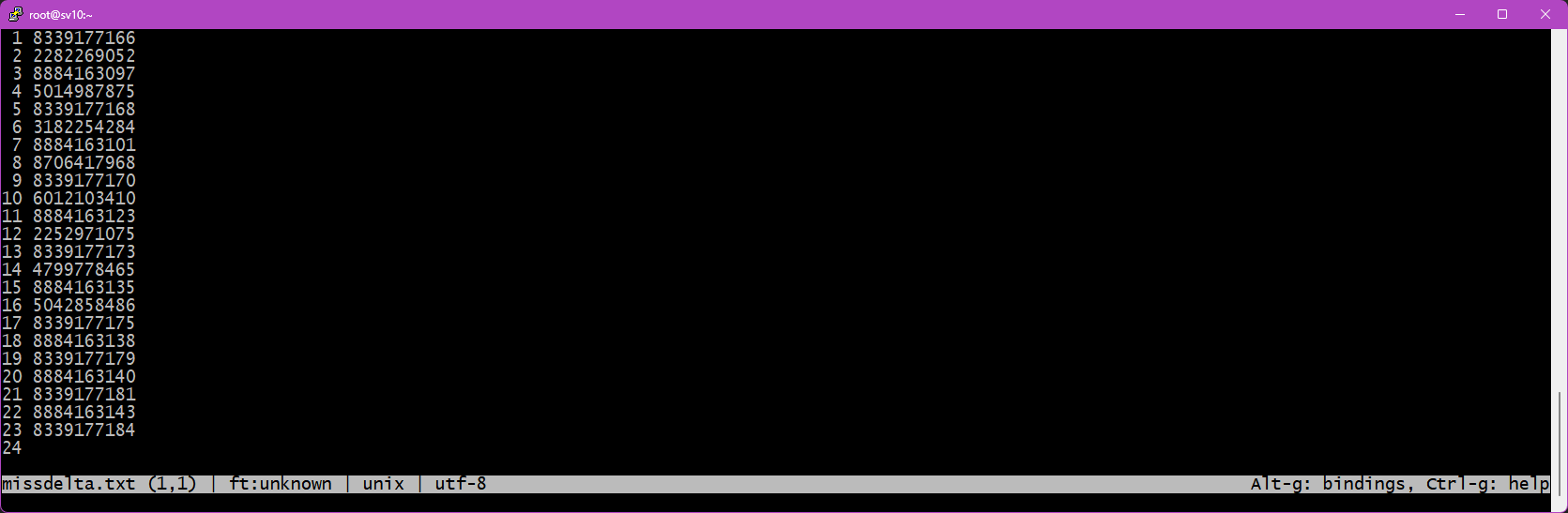
- Lastly, sometimes an extra line or text can creep into the callerid files. You can check this by opening the file in textpad, and ensure it is nothing but 10-digit phone numbers, and there are no blank rows at the bottom. The file should look similar to this:
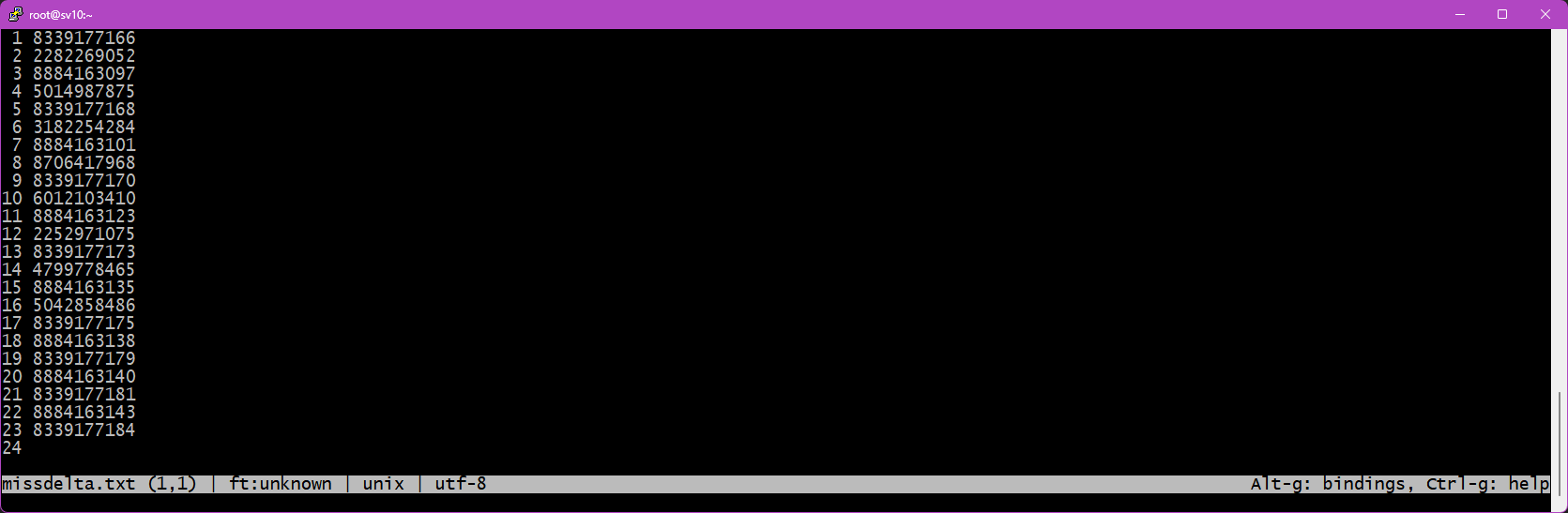
- If you notice more than one blank line below the last phone number, delete them, so there is just a single blank line under the last file. Save and attempt accessing the dialer with the study again. Sometimes a
server:clearstudycommand is needed from a boss/super to ensure the updated file gets read. If intvs still cannot login and get "Can't Initialize..." error, proceed to the next step.
- The next step to check the dialer settings is to look directly at the study's ".dial" file, which is the text version of the console window. While they should be a match, sometimes the .dial can get corrupted, especially if a PD switches a job from list to specific number, or vice versa.
- To check the .dial settings, browse to the
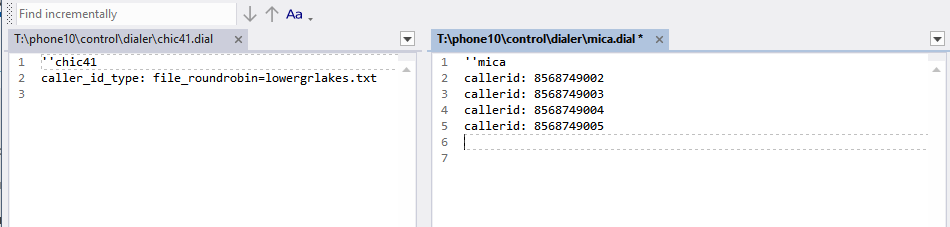
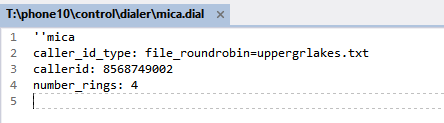
/cfmc/phone10/control/dialerfolder and look for the .dial for your study. Viewing it in textpad/notepad is acceptable for this check. The file should resemble one of the two shown below. The image on the left is a study using a list, and the one on the right is using specific numbers: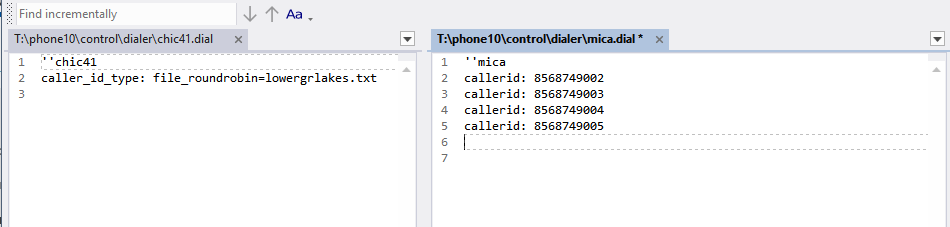
- However, if a PD changes a project's settings, the file can sometime be corrupted, and have both settings, as shown below:
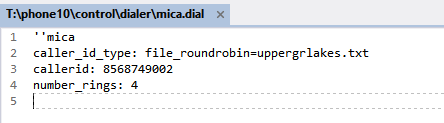
- If the file looks like above, confirm with the PD which setting is correct, and REMOVE the line that should not be there, either the caller_id_type: or callerid: line, and remove the one that shouldn't be there. Reset dialer access after saving the file. Sometimes a
server:clearstudycommand is needed from a boss/super to ensure the updated file gets read.
- To check the .dial settings, browse to the
- If all above checks have been completed, and everything is correct, but the study still will not, the only other basic test would be to clear the study from the server completely and reload it. By executing a
server:clearstudycommand from a boss/super, and then doing a qss/spi immediately after, ensures the updated file gets read by the server. - Last option... Contact DP/IT for help.
III. Interviewers Report "White Screens" when logging in:
An interviewer "White Screen" is typically reported as they try to login, and the study simply cannot load. If there was a file mismatch error, or read/write access error, they would make it through login process, and then immediately logout, while white screens don't even make it that far. The 2 most common cause of white screens are:
- Something being set wrong in the study's .wc file.
- The server's access to files changed after loading.
Each of the 2 issues above are relatively simple to check/fix.
- Errors in study.wc File - whenever a study is created, there is a .wc file created, located in
/cfmc/phone10/wc_files/called jobname_mode.wc where mode is either ws (websurvent - ONLINE mode) or wc (webcati - INTERVIEWER mode). We create a linked version simply called jobname.wc that links to the _wc version. This is done so when logging into the training/practice/testing mode, we do not have to specify the _wc on the studycode name. To diagnose an issue with the .wc file, the following steps should be followed:- You can view the file via puTTY or Windows Explorer. Simply browse to
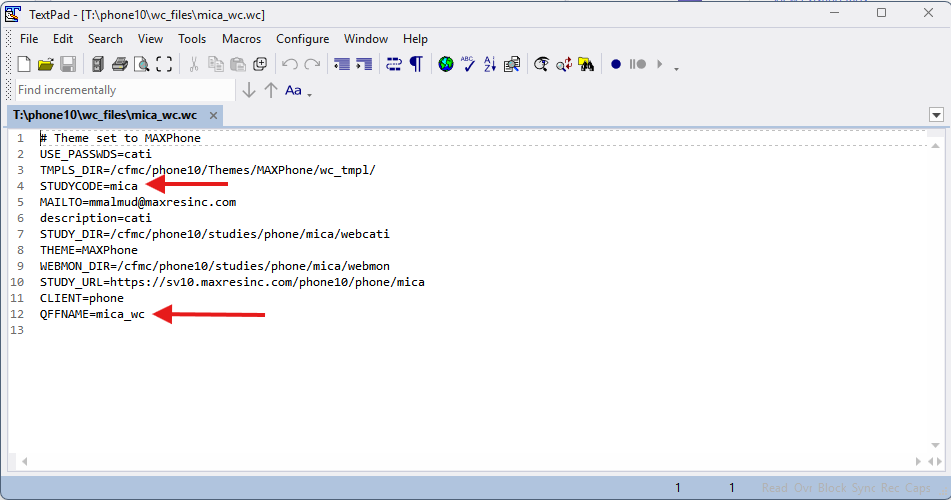
/cfmc/phone10/wc_files/and you will see the files for all the current studies listed. - Open the study file in question, and it should look similar to this:
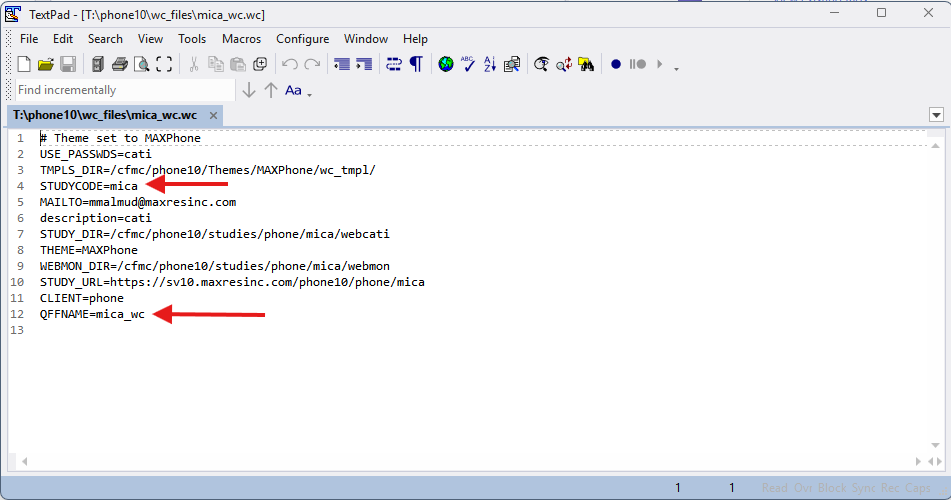
- The two lines of importance are marked above:
- STUDYCODE= should always be the actual studycode, as set when creating the project.
- QFFNAME= This is the currently loaded qff (questionnaire formatted file) for the study. If programmers made changes to a project after it starts, this field will be updated when those changes get loaded.
- If either file is missing or mislabeled, it will prevent intvs from logging in, and typically give a white screen or a "no study named <jobname> exists" error.
- To fix, ensure the STUDYCODE= matches the actual study name and that the QFFNAME= is correct.
- To check the studycode, it should be the same as the filename itself... so if you open mica_wc.wc it should say mica in the STUDYCODE= line. If not, that is the issue, and correct the STUDYCODE= line to match.
- Fixing the QFFNAME= requires confirmation from the programmer on what the QFFNAME= should be... one thing that anyone can look for though is if someone left .qff extension on the end of the file. That should NOT be part of the line, and should be removed:
QFFFILE=mica_wcthis is CORRECT!QFFFILE=mica_wc.qffthis is INCORRECT!
- If the issue was related to the .wc file being setup wrong, after correcting have the interviewers try accessing the study again. If it works, congrats! If it doesn't work, proceed to the next step.
- You can view the file via puTTY or Windows Explorer. Simply browse to
- File Ownership/Permissions/Version Issues - Often times studies get loaded early in the day, but someone accessing the study, or viewing the qss/spi etc. Once loaded by the server, it stays loaded. This can cause issues if a programmer updates file while the study has them... When an interviewer tries to login, the server basically says to them "I have the files you need, but I can't give them to you because I don't own them anymore." This happens because the datestamp of the file updated outside of the server doing something to them, it sees that change of ownership as a reason to not reload the files, and just hangs on whitescreens for the interviewer.
- This fix this, the following steps should be run via a super/boss:
server:clearstudy jobname <enter> then 2-character confirm code- This clears the study from the server & dialer, also aborts all active sessions.server:deactivate jobname <enter> then 2-character confirm code- This prevents the server from automatically reloading the studyactivate jobname <enter>- This command has the server attempt to read and lock all the files for the study.qss/mpf jobname <enter>- This will test/load the files, like the quota screen, sample, data, etc.
- Once the above 4 commands are executed, and if there were no errors, the job should no longer whitescreen for the interviewers.
- If you get errors during any of those 4 commands, or the problem still persists, contact DP/IT for help as the problem is more complex.
- This fix this, the following steps should be run via a super/boss:
IV. "Study is not in the list of Active Studies" Messages
Similar to INTV white screens, if someone tries to access a study via boss/super and receive a message that "the study is not in the server's list of active studies" means most likely files changed after the study was loaded, so the server deactivated it to prevent potential damage to the files/project. The steps to correct this follow the same as #2 in the "White Screens" section above. To fix this, the following steps should be run via a super/boss:
server:clearstudy jobname <enter> then 2-character confirm code- This clears the study from the server & dialer, also aborts all active sessions.server:deactivate jobname <enter> then 2-character confirm code- This prevents the server from automatically reloading the studyactivate jobname <enter>- This command has the server attempt to read and lock all the files for the study.qss/mpf jobname <enter>- This will test/load the files, like the quota screen, sample, data, etc.
Once the above 4 commands are executed, and if there were no errors, the job should no longer give the error and will load. If you get errors during any of those 4 commands, or the problem still persists, contact DP/IT for help as the problem is more complex.
V. Conclusion - INTVs Still Cannot Login
If, even with doing everything above, intvs cannot login, contact DP/IT for help, as it is something more complicated/complex for simple troubleshooting to solve.
It could a large variety of issues, including:
- Server Frozen
- Storage Space Issue
- Network Issues
- Project stuck "shutting down"
- IPCFile corruption
- ...and many others