
Suspends - How to View/Export Them - 5 Methods
Survox How-To: Viewing Suspend Data
Overview
Suspend data is a snapshot of a respondent's progress through a survey at the point they were interrupted -- either by a system event, an interviewer action, or a scheduled break. When a call is suspended, Survox preserves the respondent's answers and current position in the questionnaire so the interview can be resumed later without starting over.
Being able to view suspend data is an important diagnostic and operational skill. There are several reasons you may need to access it:
- Troubleshooting -- verifying that a suspend saved correctly, or diagnosing a problem respondent record
- Suspend Hitting -- isolating respondents who are near the end of the survey so trained interviewers can prioritize completing those calls
- Programming Recovery -- if a programming change breaks existing suspends, viewing and listing them provides a path to data-entering them back in so they resume correctly when called
- Script Analysis -- identifying trends in where suspends are clustering in the survey, which can be brought back to the client for possible script adjustments
- Raw Data Pulls -- extracting suspend data for analysis or reporting purposes
There are five methods available for viewing suspend data, each suited to different access levels and use cases.
Method 1: Via FoneUtil
FoneUtil is a built-in Survox utility accessed through a PuTTY terminal session. It provides a quick way to list all live suspends for a study directly from the Survox environment.
Why Use This Method?
While the output is limited compared to other methods, FoneUtil gives you an immediate count of live suspends and lets you spot trends at a glance -- such as which question numbers are clustering or which interviewers have a high volume of suspends. It requires no additional tools and works from any PuTTY prompt.
Steps
fone <enter>Launch the FoneUtil utility:
foneutil <enter>When prompted for a filename, enter something descriptive so you can locate it later. For example:
jobname_suspends.txt <enter>When prompted for a study name, enter the study name for the project you are working with.
Once the study is loaded, type the following to list suspends:
@ <enter>When prompted for a base, type a specific base to filter by sample markers, or type the following to return all suspends:
all <enter>Refer to the Sample Selects article for available bases you can use here.
After pressing Enter, FoneUtil will process the file and return you to the prompt with a summary line showing record counts. For example:
#READ(194466) #SELECTED(194466) #USED/CHANGED(179)The third value -- 179 in this example -- is the number of live suspends currently on the project.
To exit FoneUtil, press Q and Enter twice to return to the normal PuTTY prompt.
To view your output file, browse to the following folder from Windows and open the file in TextPad or Notepad:
\cfmc\phone10\active\foneWhat the Output Shows
The FoneUtil output is a plain text table. Below is an example with two phone suspends and two web suspends:
                   Suspend       Suspend                                                                   Call-Back
Phone Number       Filename <- Date/time ->   INTID Question Label                 Password/2nd Index   <- Date/time ->   Recnum  Qstnum    <Interviewer Comment>
609-864-3164       x5iaabxx 24FEB26 07:54 pm   1165 REFAVAC                        293686                       12    am   158254 QQ40.83     his phone died call back in 5 minutes............................
609-351-5040       auv6abxx 28FEB26 10:10 am   webs CFM02101                       166968               26FEB26 06:00 pm   161049 QQ18.18 .........
609-475-2194       hducabxx 25FEB26 02:21 pm   1004 TRAITAC25                      272377                       12    am   161931 QQ40.14     was at work asked to be called back after 5 2-25......................................
732-832-5208       cts3abxx 26FEB26 05:30 pm   webs FAV_INTRO                      105710                       12    am   165793 QQ39.64 ..
848-459-9299       vy7fafxx 26FEB26 08:19 pm   1242 FAV9                           189410               27FEB26 08:19 pm   165982 QQ39.70     resp had to go bc the cat got out...
The key columns to focus on are:
- Phone Number -- the respondent's number, or "webs" for online respondents
- Suspend Date/Time -- when the suspend occurred
- INTID -- the interviewer ID, or "webs" for web respondents
- Question Label -- the last question answered before the suspend
- Password/2nd Index -- the respondent's web password
- Call-Back Date/Time -- scheduled callback if one was set
- Interviewer Comment -- notes entered by the interviewer at the time of the suspend
Note: This method does not display quota information. It is Survox's native output only.
Method 2: Via the Survox Console
The Survox Console provides a GUI-based version of the same suspend report generated by FoneUtil. It requires no terminal access and is the most straightforward method for viewing suspends.
Why Use This Method?
Fewer steps than FoneUtil, and the output is displayed as a sortable HTML table -- making it easy to sort by question label, interviewer, date, or any other column without needing to scan through a flat text file. A download option is also available for sharing with the team.
Steps
Log into the Survox Console.
Manage > Manage Sample > List Suspends
Select your project from the dropdown if it is not already selected, then click Go.
The suspend list will display as a sortable HTML table. Click any column header to sort by that field.
Note: This method does not support base filtering -- it always returns all suspends for the selected project.
list_suspends_jobname.prtThis file can be opened with TextPad or Notepad.
Method 3: Via Custom Command (run_suspends)
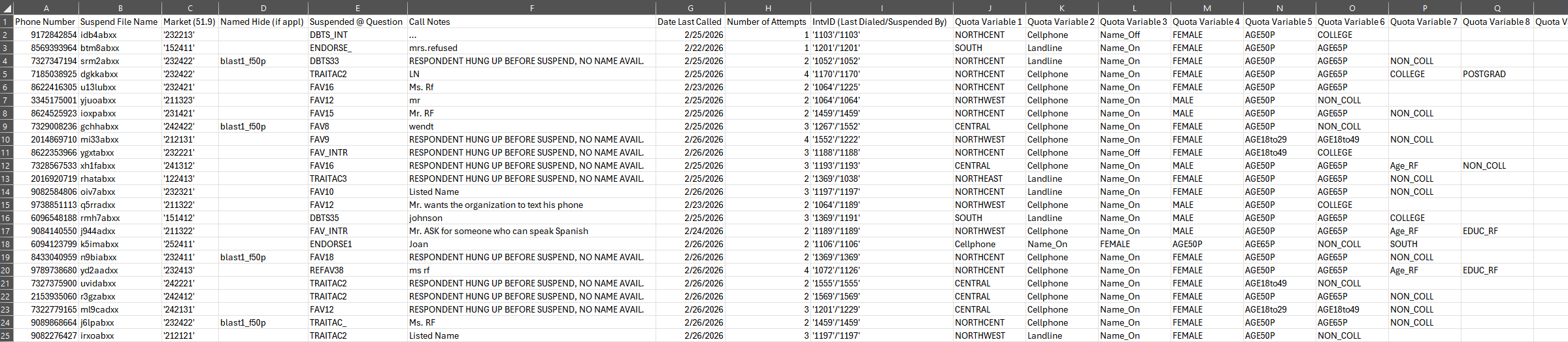
run_suspends is a custom-built script that produces the most comprehensive suspend report available. Unlike the previous methods, it outputs a fully formatted Excel file with quota and hide status data included. By default, this mode only provides suspends that were called, and will exclude any web/sms suspends. This can be adjusted though, in the steps listed below.
Why Use This Method?
This is the most informative method available. The Excel output includes quota assignments per suspend, allowing you to target records where specific quotas are still open while ignoring closed ones. It also flags whether a record is named/hidden -- meaning the phone room cannot retrieve it without a supervisor revealing it first. The Excel format allows full sorting and filtering for targeted suspend hitting or script analysis.
Steps
fone <enter>Launch the script:
run_suspends <enter>This will open a configuration file. Locate the jobname line and replace the placeholder with your project name:
>define @jobname jobname1On the next line, you will see the base definition. Survox uses '' at the start of a line as a comment (similar to # in Linux), so the base line is "ticked out" by default.
- To filter by a specific base, remove the
''from the front of the line:>Define @base your_base_here - To return all suspends, leave the line ticked out as-is.
Refer to the Select Statements article for available bases.
Below the base line is a switch called ''>define @INCLWEB. This is OFF by default. If you remove the '' at the front though, the suspend list WILL include web suspends, as well as phone suspends.
Save the file when done:
Control+X, then Y to confirm, then <enter> to keep the same filenameThe script will run and process the project. Processing time will vary based on project size -- roughly 2-3 seconds per 100,000 records.
When complete, an Excel file will be available in the fone folder:
jobname_suspends.xlsBrowse to \cfmc\phone10\active\fone in Windows and open the file in Excel.
What the Output Shows
The Excel file contains one row per suspend, with the following columns:
- Phone Number
- Suspend File Name
- Market
- Named Hide -- if applicable; indicates the record is hidden and must be revealed by a supervisor before the phone room can retrieve it
- Suspended @ Question -- the last question answered before the suspend
- Call Notes -- interviewer comments entered at time of suspend
- Date Last Called
- Number of Attempts
- IntvID -- the interviewer who last dialed or suspended the record
- All Assigned Quotas -- shows quota status per record, allowing you to filter for open quotas and ignore closed ones
Method 4: Via Rundata
The Rundata method delivers suspend data automatically as part of the project's nightly data output. Unlike the other methods, this is not something you run on demand -- it is a one-time setup completed by the Programmer at the request of the Project Director.
Why Use This Method?
This is the only method that includes the full data record for each suspend -- every sample variable and every answer the respondent provided up to the point of suspension. This makes it particularly valuable when suspends need to be data entered, as you have the complete picture of the path the respondent took through the survey.
Setup
This method requires a one-time programming change. The PD should request this from the Programmer assigned to the project. There are two options:
- Combined -- suspend records are included alongside the other data files (completes, terminates, over-quotas, etc.) in the nightly output
- Separate File -- suspend records are delivered as their own dedicated file
In either case, the suspend data will be included in the nightly jobname_internal.zip file delivered as part of the rundata system.
Important Note: Suspend data is not removed from the datafile once a respondent completes the survey. This means the file may contain duplicate records -- one for the suspend and one for the eventual complete. Use Excel sorting, filtering, or formulas to identify and remove those duplicate cases before analysis.
Method 5: Full Data Via Console
This method is the console-based equivalent of the Rundata method, but can be run on demand without involving a Programmer. It is a two-part process -- the data must be assembled first, then output. Both parts must always be run together, or the output will not reflect current suspend status.
Why Use This Method?
Unlike Method 4, this method automatically excludes records where a suspend was later resolved by the respondent completing, terminating, or going over quota. It will not, however, exclude suspends that were resolved via sample dispositions such as Refusals, DNC, Disconnected, or Max Attempts -- only records where the respondent actually resumed the survey will be excluded, as this method reads the resume file during the Assembly phase.
Part 1 -- Assemble Suspends
Log into the Survox Console and navigate to:
Data Analysis > Data Utilities > Assemble Suspends
Select your project name from the dropdown.
A filename field will appear below. Enter a descriptive name for the output:
jobname_suspendsClick Go.
The process may take a few seconds. Once you see the "SELECT FILES TO DOWNLOAD" notice, Part 1 is complete. You do not need to download anything at this stage.
Part 2 -- Delimited Conversion
Without leaving the console, navigate to:
Data Analysis > Data Utilities > Delimited Conversion
Select the same project you just assembled if it is not already selected. Leave the Live/Test setting as Live.
For the Data Source selector, locate the following file in the list:
jobname_suspends.trIt will appear twice -- once under
tables\and once underreports\. Either entry is the same file.
For the Variable Source selector, choose the option listed under reports or tables -- typically:
reports\jobname.dbor
tables\jobname.dbLeave the output name as-is.
For Output Data Type, select Delimited.
Under Additional Output Options, check the box labeled "Output response text instead of response code" -- this displays answers as readable text (e.g. Yes/No) rather than numeric codes (e.g. 1/2).
Click Convert Data.
Three files will be presented. Click jobname.csv to download and open it.
Optional: Save Settings
To save time on future runs, check the Save Settings box and provide a short name such as:
spnsOn future runs, select this saved spec from the selector at the top of the page and steps 4 through 7 above can be skipped.
In Conclusion
Each of the five methods serves a different purpose, and knowing which one to reach for will save you time and get you better information. As a general rule of thumb:
- If you just need a quick count of live suspends, use Method 1 or 2
- If you need quota and hide status for targeted suspend hitting, use Method 3
- If you need the full data picture for data entry or deep analysis, use Method 4 or 5
- If you need something on demand without programmer involvement, Methods 1, 2, 3, and 5 all fit that bill
When in doubt, Method 3 is the go-to for day-to-day suspend management, and Method 5 is the go-to when you need the full record without waiting for the nightly data run.