
Troubleshooting - Server/Dialer Crash
Troubleshooting - Server/Dialer Crashes
There are many reasons why the Dialer and/or Study Server can crash, but those are for DP/IT to figure out. This guide is more of a "what to do to get things running again" step-by-step list. Depending on the severity of the crash, various steps may be required. Following along in order helps diagnose the extent of the crash and the best steps to follow.
Other times, it may be needed to "Bounce" the dialer or Study Server between shifts, to clear errors, locked files, or free up resources that hung. If this is a planned "Bounce" you can proceed directly to Sections B & C to follow the steps for "Bouncing".
Section A - What actually crashed...?
The first, and most important step is to first isolate what actually crashed... the Dialer, Study Server, Both, Internet, the physical machine, etc. This is accomplished with a few simple steps/tests:
- Step 1 - Is it the power/internet at the building?
- Try opening the Survox Console/Putty
- if it loads, it is NOT Internet, so continue to the next step.
- If the Console/Putty doesn't load, check if other servers work, like the web server or VPN. If they too DO NOT load, it is 100% an internet/building issue. Contact DP/IT to investigate and await further instructions
- Ironically, if you are viewing this document live, it is NOT power/internet, as MAXWell sits on a server IN the building.
- Try opening the Survox Console/Putty
- Step 2 - Check Survox Access
- Once you have confirmed there is power/internet at the building, the next step is to confirm that the Survox Server is operational...
- Putty is your best test here. If you can access the server via puTTY, it means the physical server is running, and accessible, so proceed to step 3.
- If you cannot access the server via puTTY, most likely the physical machine crashed/rebooted. This has to be checked from within the building, by someone with security clearance to access the server room. Contact IT and have them investigate.
- Once you have confirmed there is power/internet at the building, the next step is to confirm that the Survox Server is operational...
- Step 3 - Check if the study server actually running
- Once you have confirmed that the server is running and there is power/internet at the building, the next step is to check the actual interviewing study server.
- There are 2 ways to quickly check if the Survox study server is running:
- From the Survox Console, navigate to Manage -> Shop and Server -> Start
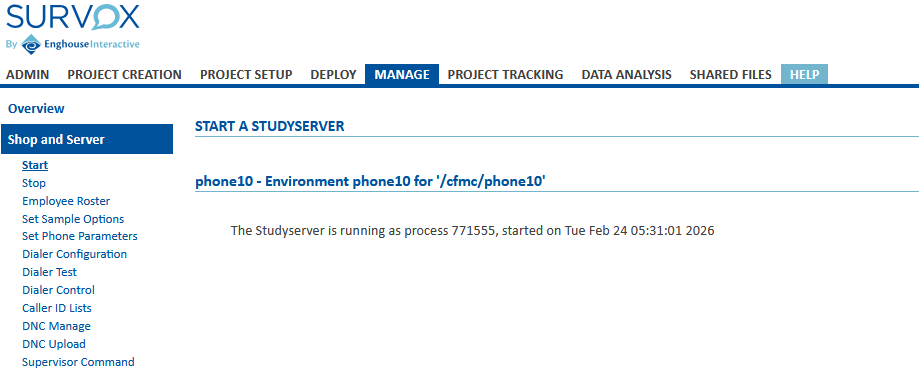
- If the study server is running, you will see a message similar to below:
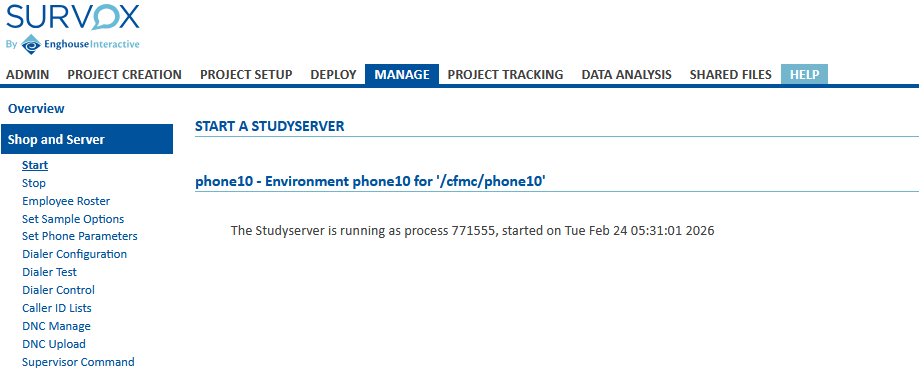
- The other option to check the server status is in puTTY, via a super/boss. If it loads, and you get the
Enter Supervisor Command -->prompt, the server is running.
- If either option shows the study server is running, proceed to the next step to further isolate what else may have crashed.
- If after testing the server, it is determined the study server is NOT running, process to Section B to attempt a restart.
- Step 4 - Check Dialer Status
- If you have gotten this far, there is most likely only one thing left that could be crashed, the Dialer. Again, just like with the study server, there are 2 ways to check the Dialer's status...
- From the Survox Console, navigate to Manage -> Shop & Server -> Dialer Control and simply click the blue "Go" button to see the dialer's current status
- This will show you if the dialer is running or not.
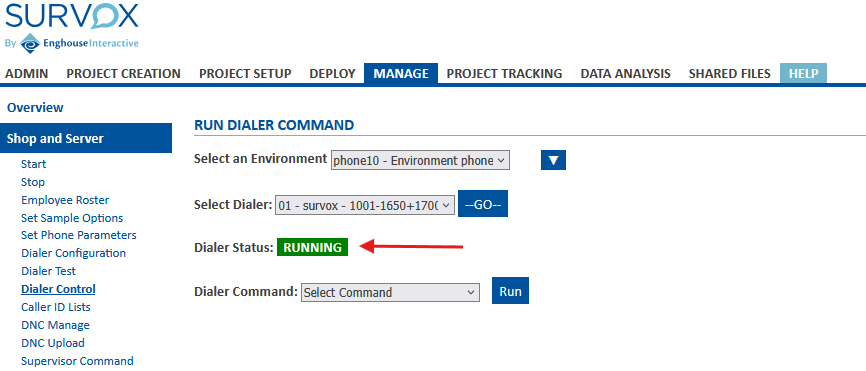
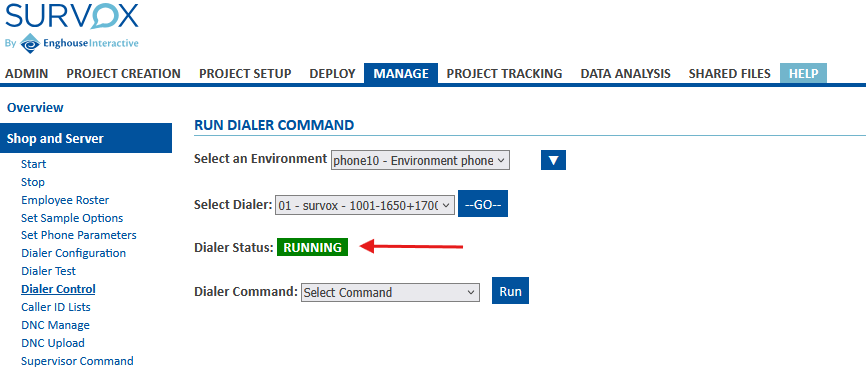
- The Console will either show RUNNING or NOT RUNNING in the highlighted image above. If the dialer is RUNNING it may just need to be activated on the server, to proceed to Section C, Step 3 to enable dialer control on the study server. If the dialer is NOT RUNNING it needs to be started and initialized on the study server, so proceed to Section C, Step 1 to do a full dialer reset.
- If you have gotten this far, there is most likely only one thing left that could be crashed, the Dialer. Again, just like with the study server, there are 2 ways to check the Dialer's status...
- Step 5 - Other Issues
- If you made it this far and still have not isolated what the issue is, it is most likely something more complex, that requires IT/Survox to diagnose.
- Contact the IT team and explain the issues and what steps you already attempted
- It could be hung apache services, full storage, certificate errors or other issues they are trained to diagnose.
- If you made it this far and still have not isolated what the issue is, it is most likely something more complex, that requires IT/Survox to diagnose.
Section B - Restoring Survox Study Server
More often than not, the study server has crashed rom either an error record on a project, or a corrupt file being accessed, or a accidental clearing from Dp/IT. The process to restart the study server is relatively simple, and can usually be doing via the Console, unless it is "hung/frozen" in which case puTTY is required. Below are the steps to take via the Console. Below those are the additional steps should the Console method fail.
- Option 1 - Restart Via the Survox Console
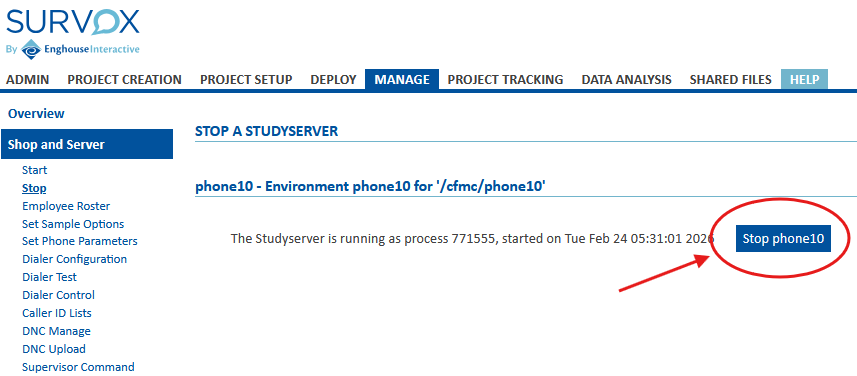
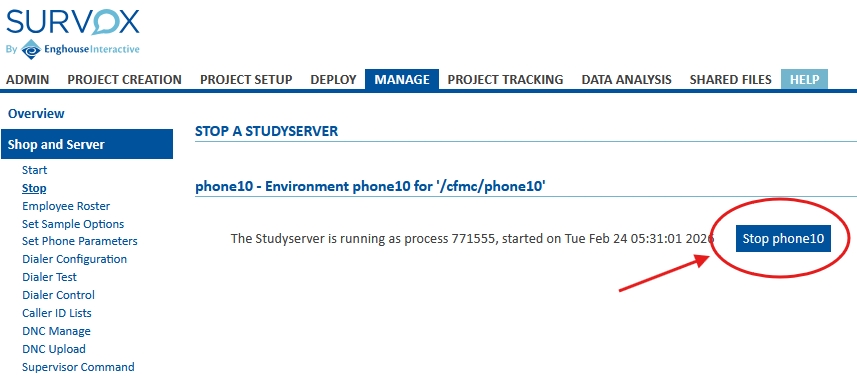
- Once logged in, navigate to Manage -> Shop & Server -> Stop - This is a safety check to make sure the Console doesn't think it is still running. If you see a Process ID showing, with a date/timestamp and "Stop Phone10" like below, that means the Console thinks the study server is still running, so only proceed if you are 100% sure the server is crashed or needs to be "bounced".
-
If the screen shows No Studt Server loaded, you can proceed with starting the server up. Just click on the "Start" option under Shop & Server. - This screen will give you the option to "Start phone10" if it is not already running. Simply click that button and wait for the Console to confirm back if the server started properly or not.
- If there are errors when restarting, proceed to the "Advanced" option of restarting via putty below.
- If the server loaded properly, the next step it to reinitialize the Dialer, so proceed to Section C.
- Once logged in, navigate to Manage -> Shop & Server -> Stop - This is a safety check to make sure the Console doesn't think it is still running. If you see a Process ID showing, with a date/timestamp and "Stop Phone10" like below, that means the Console thinks the study server is still running, so only proceed if you are 100% sure the server is crashed or needs to be "bounced".
- Option 2- Restart via PuTTY (Advanced Mode)
- Restarting the study server via putty is more informative on what is happening but takes a little more understanding of puTTY and linux. Below should give you all the information you need though. If this is a scheduled "bounce" it is recommended to cleanly shut down the server, via the console and only follow the below steps for "hung/frozen" study servers
- First, connect the study server via puTTY, as the normal cfmc user.
- Second - Check for an active/hung study server process by typing the following into puTTY:
srvrchk <enter>- This will either show you nothing, or a stdysrvr process running.
- If nothing is shown, proceed to the next step
- If a process id is shown, we need to clear it first, using the linux command "kill" which will IMMEDIATELY kill the study server process, disconnecting all intv sessions, super/boss sessions, and anything else running interactively.
- The kill process is simple... type
kill -9 process_id <enter>as shown in the below, example, where the server's process ID is listed as 771555:CfMC-phone10 /cfmc>srvrchk Checking for active STDYSRVR process ID... If nothing appears below, there is no server active. However, if there is information shown, take note of the process ID listed PROCID ------ VvVvVv 771555 cfmc 20 0 336308 83852 10032 S 0.0 0.1 0:35.49 stdysrvr CfMC-phone10 /cfmc> kill -9 771555 <-- immediately kills the process ID of the study server CfMC-phone10 /cfmc>srvrchk Checking for active STDYSRVR process ID... If nothing appears below, there is no server active. However, if there is information shown, take note of the process ID listed PROCID ------ VvVvVv <-- nothing shown this time, confirms server is down CfMC-phone10 /cfmc> - note: the process ID is randomly assigned each time a process starts, so it will NOT be the same each time you start/restart a server.
- Once you have confirmed the "stdysrvr" process is not running, you can start the server back up. This is done with a single command:
server_start.pl ALL <enter>and it can take 30-60 seconds to start. Hitting <enter> 2-3 more times helps speed it up, but when done, it should echo back that the server is started and running on a new PID. If not, there is something more complex going on and IT needs to step in. - You can again confirm if the stdysrvr process started, but running the
srvrchk <enter>command again and making sure it shows a new Process ID. - The final test that the server loaded properly is to try to access a super/boss. If that loads cleanly, the server has been started/restarted/bounced and you are good to resume operations... assuming you do not also need to bounce the dialer, in which case read on below...
Section C - (Re)Starting the Survox Dialer