How To: Caller ID/LCP Settings & Call Interceptor Program
CallerIDs/LCP & Call Interceptor System:
A How To Guide for PDs
The Realtime CallerID Adjustment System is the single, authoritative source for managing the outbound CallerID numbers used on your studies -- no more dropping or relaunching a job just to update the number list, and no separate Survox or MAXWell setup steps required.
When active on a study, this system controls the CallerID used on outbound calls in real time. Changes made here take effect on the very next call -- instantly, with no reload required.
Five modes are available per study, switchable any time:
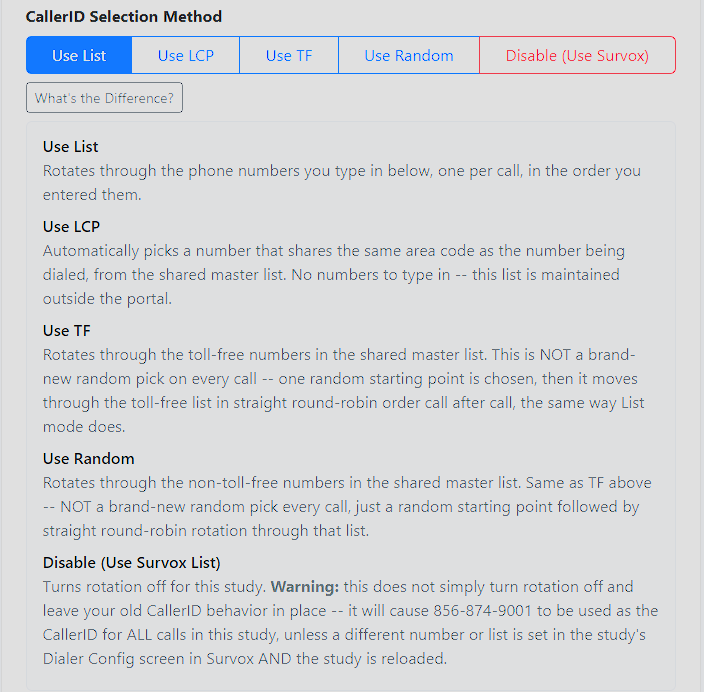
- Use List -- Rotates through the phone numbers you type in below, one per call, in the order you entered them.
- Use LCP -- Automatically picks a number that shares the same area code as the number being dialed, from the shared master list. No numbers to type in -- this list is maintained outside the portal.
- Use TF -- Rotates through the toll-free numbers in the shared master list. This is NOT a brand-new random pick on every call -- one random starting point is chosen, then it moves through the toll-free list in straight round-robin order call after call, the same way List mode does.
- Use Random -- Rotates through the non-toll-free numbers in the shared master list. Same as TF above -- NOT a brand-new random pick every call, just a random starting point followed by straight round-robin rotation through that list.
- Disable (Use Survox List) -- Turns rotation off for this study. Warning: this does not simply turn rotation off and leave your old CallerID behavior in place -- it will cause 856-874-9001 to be used as the CallerID for ALL calls in this study, unless a different number or list is set in the study's Dialer Config screen in Survox AND the study is reloaded.
Note: If a job does not exist yet in the Realtime CallerID Adjustment System, it will automatically be created once a call is dialed on it, and defaulted to LCP mode until it is set up with a different mode.
Switching between modes preserves your existing list in the background, so you can flip back and forth without losing your work.
Using the Realtime CallerID Adjustment System
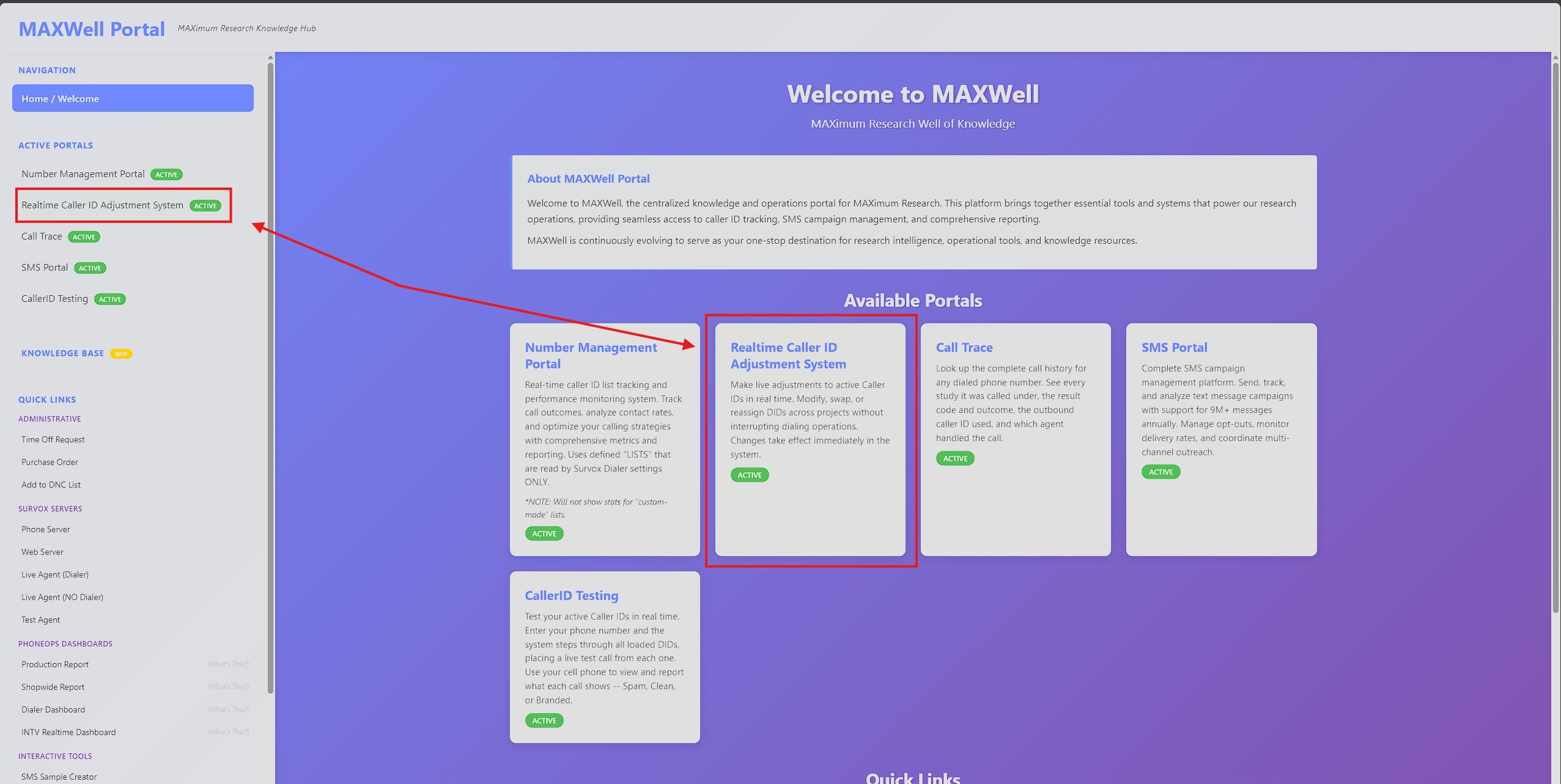
In MAXWell, click on the "Realtime CallerID Adjustment System" menu/box.
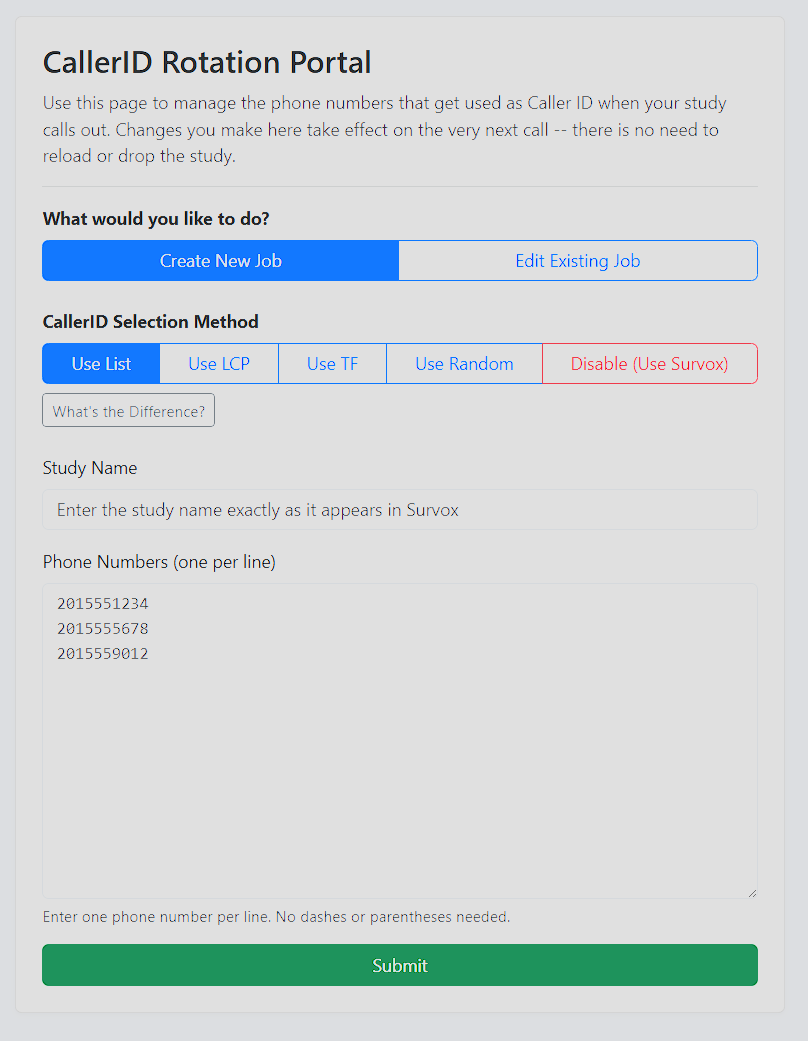
Create New Job / Edit Existing Job
Self-explanatory -- choose whichever applies to your situation. If your job does not exist yet in the system, it will be created automatically once a call is dialed on it, and defaulted to LCP mode until you set it up with a different mode.
Mode Selection
Choose the mode for the study: Use List, Use LCP, Use TF, Use Random, or Disable. See the mode descriptions above for details on each.
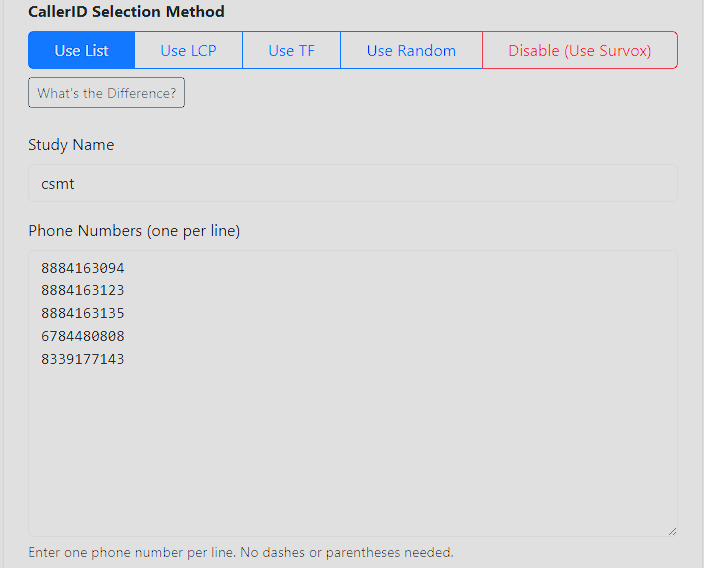
Study Name
This field MUST match the Survox study name letter for letter. Case does not matter.
If the Study Name does not match exactly, the system won't recognize it as the same job. Since the Interceptor auto-creates a job the moment a call is dialed, a mismatch results in TWO jobs existing for the same study -- the one you manually created, and a separate auto-generated one (defaulted to LCP) under the name Survox is actually sending. For example, if you create a job called "oh_state" but the Survox study name is actually "ohstate," you will end up with two separate jobs listed: your "oh_state" job, and an auto-generated "ohstate" job.
Phone Numbers
Paste in the actual numbers you want to use, one per row. This field is only valid if using "Use List" mode.
When you are happy with your selections, click the green "Submit" button at the bottom. Your new Interceptor task will be created and active immediately.
Edit Existing Job
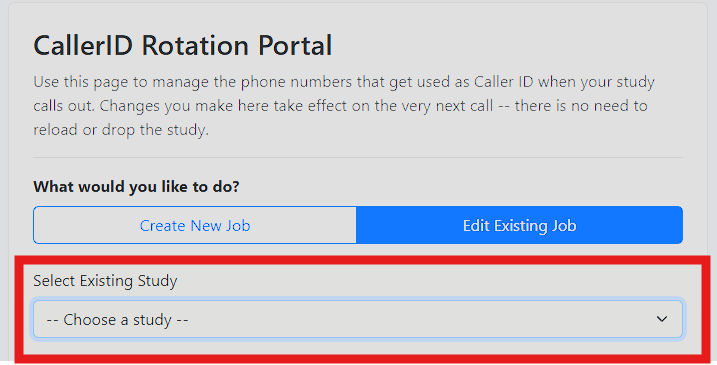
The only real difference here is that the Study Name type-in box becomes a dropdown, letting you select an existing project. All other steps and notes covered above are the same.
There are 2 additional options available when editing an existing job:
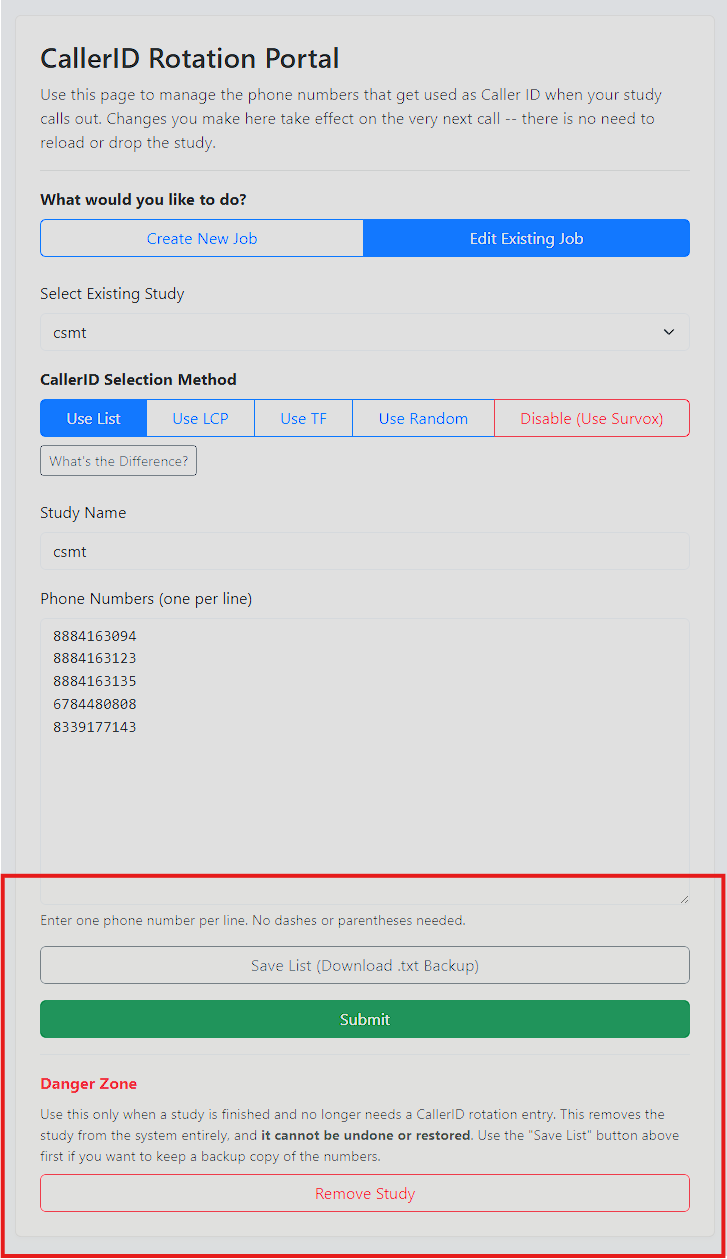
If you plan to remove a study, it's recommended to use Download List right beforehand to save a record of the settings -- though this is completely optional.
- Download List -- Creates a txt file for you to save when a project is done, so you can store the settings for later reference, should the job come back, or if someone asks how it was set up.
- Remove Study -- Completely DELETES the project from the Interceptor program. This should ONLY be done after a project has concluded fielding and is billed. Doing so helps keep the database at a minimum and running smoothly. Note: If a study is removed prematurely, the system will only recreate the job (defaulting it back to LCP mode) once a call is actually dialed on it afterward.
Notes
- Numbers and Mode changes are INSTANT, starting with the very next call.
- All changes are logged and stored for historic reference (Brian access needed to view logs).
- Adding a number into a list multiple times "weights" it, so it gets used more frequently.
Verifying Your Changes
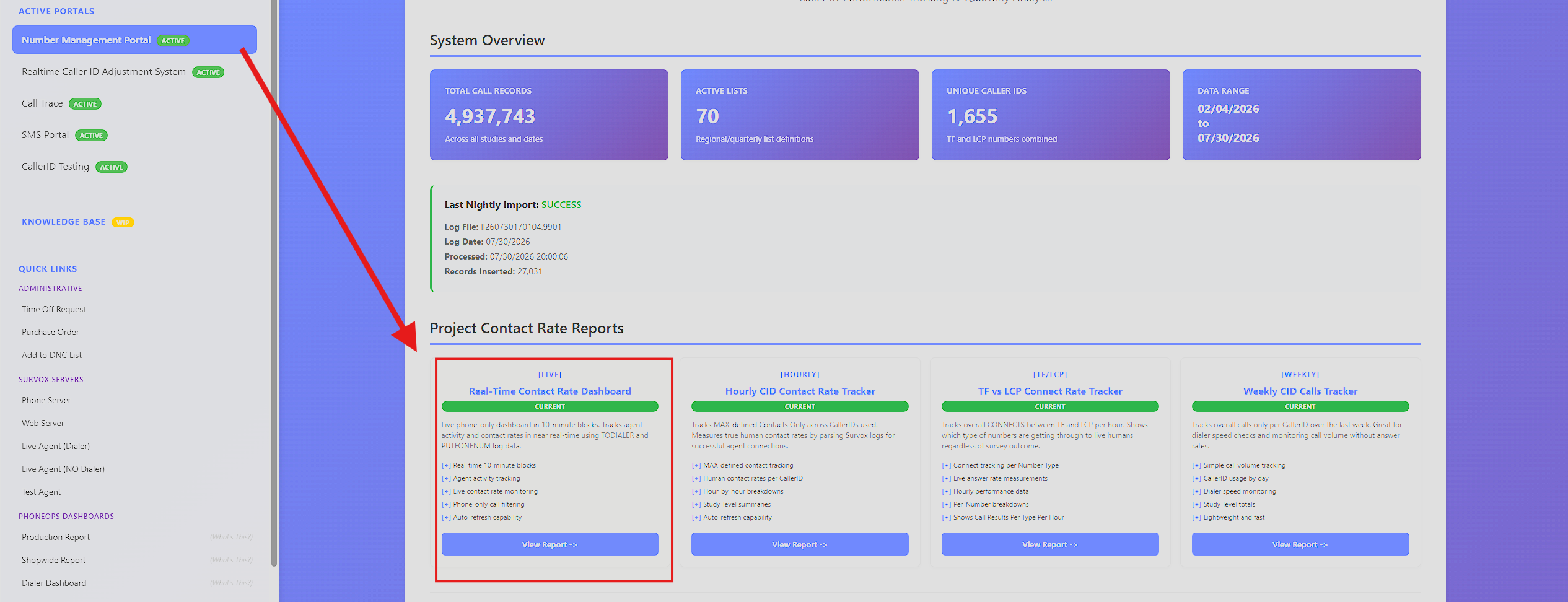
To check your changes are working, you can view the Realtime Dashboard from MAXWell's Number Management Portal. You should see the changes reflected within a few minutes.
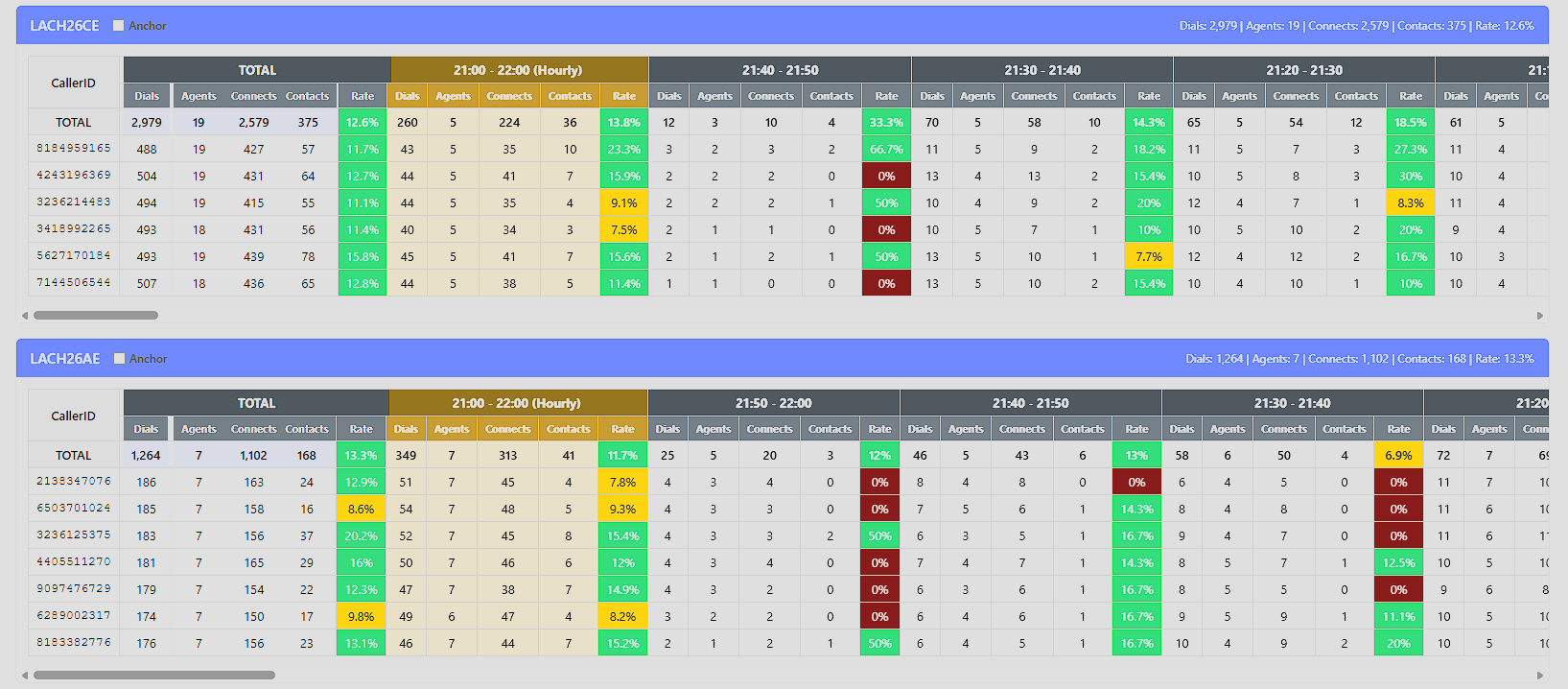
- If you switched modes or added new numbers to a List, you should start seeing new numbers appear with calls from them in the table for the study.
- If you removed a number from a List, or switched away from a mode, the numbers no longer in use should stop incrementing shortly (calls still live from before the change can still cause minor increases).
Common Problems Q&A
Q: I created a job, but the calls are still using the wrong CallerIDs. What happened?
A: This is almost always a Study Name mismatch. Since the system auto-creates a job the moment a call is dialed, a mismatch results in TWO jobs existing for the study -- the one you manually created, and a separate auto-generated one (defaulted to LCP) under the name Survox is actually sending. Double check the dropdown/job list for a similarly-named duplicate job.
Q: What actually happens if I use Disable mode?
A: All calls on that study will use 856-874-9001 as the CallerID -- this is not the same as "leaving CallerID behavior alone." This should be avoided in almost all cases. If you do need to use it intentionally, a list must also be set in the study's Dialer Config screen in Survox, AND the study must be reloaded, or every call will go out on 856-874-9001.
Q: What's the difference between Use TF and Use Random?
A: Use TF rotates through the toll-free numbers in the shared master list; Use Random rotates through the non-toll-free numbers in that same list. Neither one picks a brand-new random number on every call -- each picks one random starting point, then moves through its list in straight round-robin order from there, the same way List mode does. Note: switching modes resets the last number used, so if you switch back to either of these modes later, it could start at a different spot in the list.
Q: When should I use Remove Study?
A: Only after a project has finished fielding and has been billed. It's a good idea to use Download List first to save a copy of the settings before removing. If a study is removed prematurely, the system will simply recreate the job (defaulted back to LCP mode) the next time a call is actually dialed on it.
Q: When should I create my Study?
A: Unlike survox, you can make these projects at anytime, as long as you know what the programmer is using as the studycode.